
How to Sign a PDF on Windows 10 or 11 for Free, Without Acrobat
Windows has no PDF signing app of its own, but you don't need Acrobat. Here are three free ways to sign a PDF on a Windows 10 or 11 laptop, what each one gives you, and which to pick for a contract, a form or a quick reply.
To sign a PDF on Windows 10 or 11 for free, you have three good options and none of them is Adobe Acrobat. You can draw your signature in Microsoft Edge, use Firefox's own signature tool, or open OneClickPDF's Sign PDF in any browser and type, draw or upload your signature, then add the date. With all three, the PDF stays on your laptop.
Below are the steps for each, what each one can and can't do, and a short guide to help you pick.
Which way to sign a PDF on Windows?
- A quick scribble in a few seconds: Microsoft Edge, which is already on your PC.
- Your name in a handwriting style, or a saved signature you reuse: Firefox or OneClickPDF Sign PDF.
- The date, initials and other text too, or several files at once: OneClickPDF Sign PDF.
- A picture of your real signature, signed on paper: OneClickPDF Sign PDF (Upload or Camera).
- Proof of who signed, with a certificate: none of these. Use the sender's e-signature service.
Option 1: Draw your signature in Microsoft Edge
Edge comes with Windows 10 and 11, and its PDF reader lets you draw on the page. Microsoft's own guide to the reader says drawing (it calls it "inking") is useful to "sign, or fill out PDF forms" (Microsoft Learn).
- Right-click the PDF in File Explorer and choose Open with > Microsoft Edge.
- Choose Draw on the toolbar above the page. You can change the colour and line thickness there.
- Sign on the signature line with your mouse, touchpad, or a pen if your laptop has a touch screen.
- Save the file. If you want to keep the unsigned copy too, save the signed one under a new name.
This is quick, but a signature drawn with a touchpad rarely looks like your real one, and you draw it again on every document.
Option 2: Use Firefox's Add signature tool
If you use Firefox, its PDF viewer has a signature tool of its own. We tried it in Firefox 157 in October 2026.
- Open the PDF in Firefox (drag it onto a Firefox window).
- Choose Add signature on the toolbar, then Add new signature.
- Pick Type, Draw or Image. Tick Save signature if you want it next time.
- Choose Add, then drag the signature onto the line and resize it.
- Use the Text tool for the date, then Save.
Firefox adds the signature as a separate object on top of the page, so someone with a PDF editor can select it, move it or delete it.
Option 3: Sign in your browser with OneClickPDF, nothing to install
Sign PDF works in Edge, Chrome or Firefox on any Windows 10 or 11 PC. It opens your PDF in the browser, and the signed copy is saved straight to your Downloads folder. Your file isn't uploaded anywhere.
Make your signature
- Go to oneclickpdf.net/tools/sign and drop your PDF onto the page, or click to choose it.
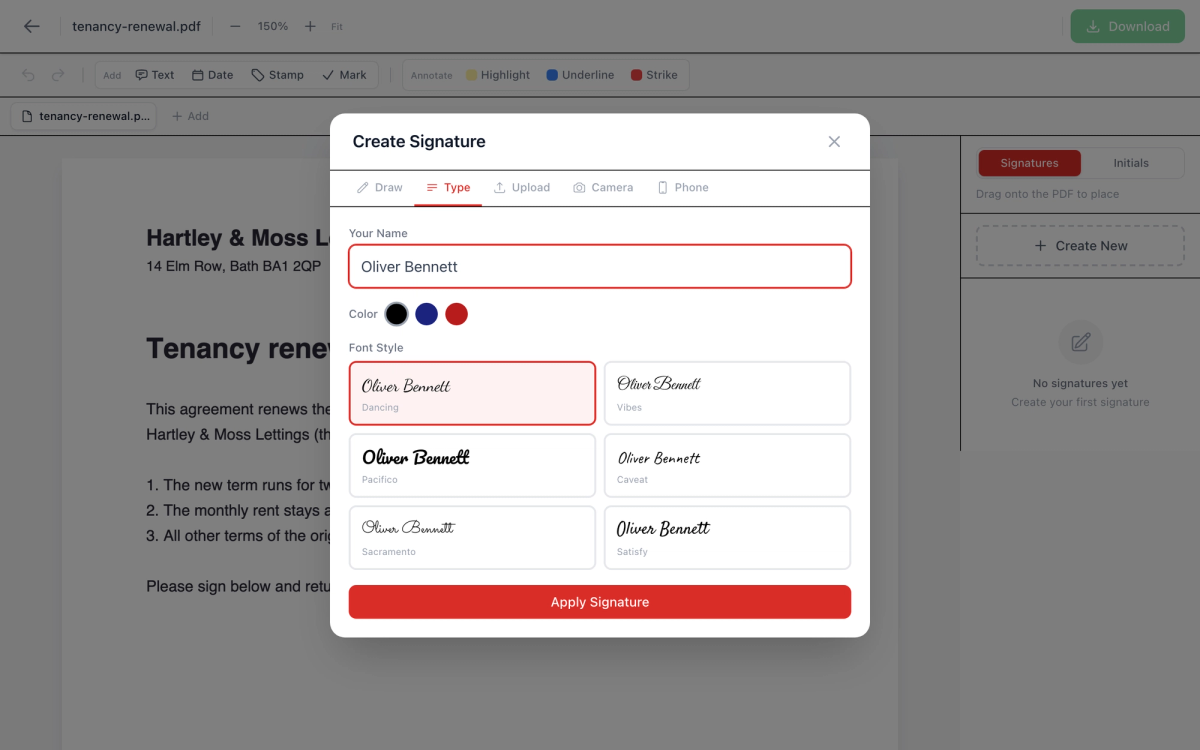
- Choose Create New in the Signatures panel on the right.
- Pick a tab (the five are listed below), then choose Apply Signature. Your signature is saved in the panel, which holds up to 10 signatures plus 10 sets of initials.
- Draw it with your mouse, touchpad or pen.
- Type your name and choose one of 6 handwriting fonts, in black, blue or red.
- Upload a photo or scan of your signature (PNG or JPG). The paper background is removed.
- Camera: hold your signature up to the laptop's webcam. The picture stays on your computer.
- Phone: scan the code with your phone and sign on its touch screen. This tab sends only the signature image through our server, which keeps it for no more than 10 minutes.
Place it and download
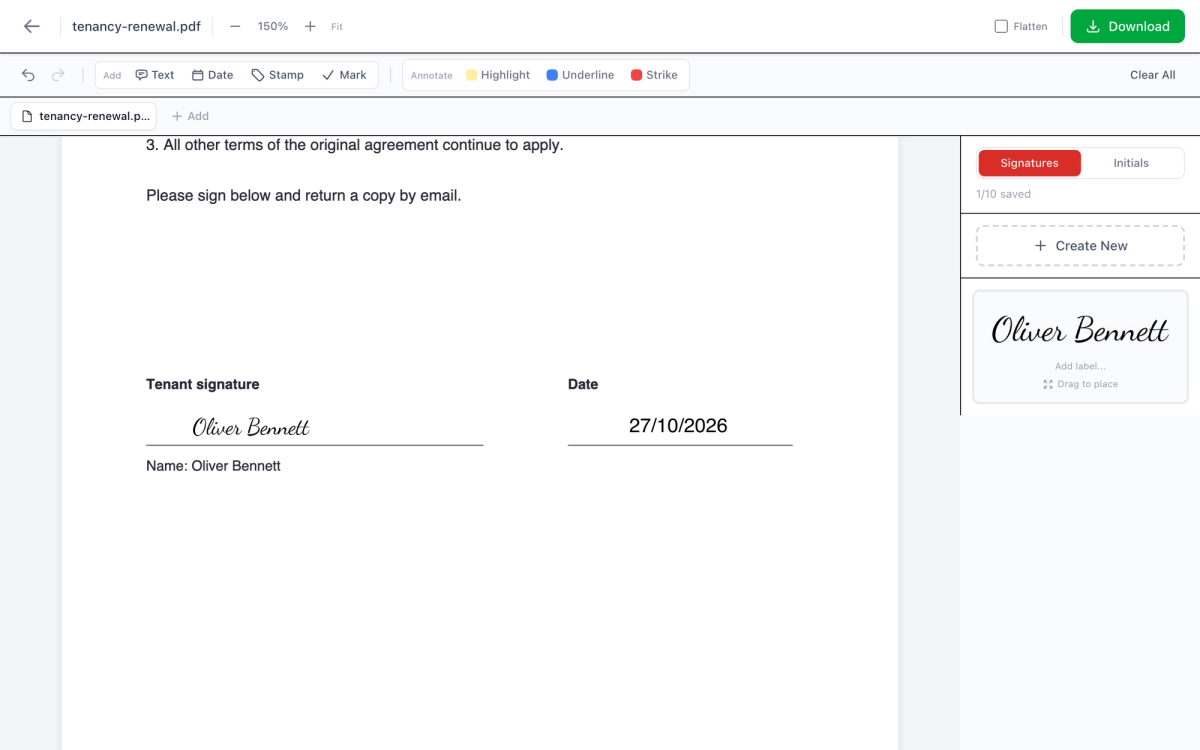
- Drag the signature from the panel onto the signature line, then drag its corner to resize it.
- Choose Date on the toolbar, pick a format such as DD/MM/YYYY, and drag the date into place. Text adds anything else the form asks for, and the Initials tab works like Signatures.
- Choose Download. You get a copy with "_signed" added to the file name.
Should you tick Flatten?
Leave Flatten off for most documents. Your signature then becomes part of the page, and the rest of the text stays selectable and searchable. Tick it if you want every page turned into a fixed image, so nothing on it can be selected or edited in an ordinary PDF reader. The text stops being selectable too, so only use it when you need that. You can also flatten a finished file later with Flatten PDF.
Signing a form?
If the PDF has boxes to fill in, fill them first with Fill PDF Form, then add your signature. If you have several documents to sign, add them all in Sign PDF and choose All as ZIP to download them together.
What none of these methods do
All three put a picture of your signature on the page. That's what most "please sign and return" emails need: a tenancy renewal, a school trip form, a freelance contract. None of them adds a certificate-based digital signature, which proves who signed and shows whether the file was changed afterwards. If the sender asks for one, use the signing service they recommend.
If you'd rather install software, Adobe's free Acrobat Reader also has a Fill & Sign tool where you can type, draw or add a picture of your signature (Adobe). It needs a download and installation; the three options above don't, apart from Firefox if you don't already have it.
Signing on another device?
The same tool works on other computers and phones. There are separate guides for Mac, iPhone and Android. On a Windows laptop, the quickest route with the most options is to open Sign PDF in the browser you already use.
Frequently Asked Questions
Can I sign a PDF on Windows without Adobe Acrobat?
Does Windows 11 have a built-in way to sign a PDF?
Is my PDF uploaded when I sign it with OneClickPDF?
Can I save my signature for next time?
Is a drawn or typed signature the same as a digital signature?
Can I sign several PDFs at once?
Try these tools next
Sign PDF Online Free
Draw your signature, type it, or upload an image — then place it anywhere on your PDF in seconds. Legally valid under the ESIGN Act (US), eIDAS (EU), and Electronic Communications Act (UK). No account is needed.
Flatten PDF
Bake all annotations and form fields permanently into the PDF.
Fill PDF Form
Fill in an existing PDF form without any software — type into text fields, tick checkboxes and pick dropdown options, then download it.