How to Sign a PDF on iPhone
Sign a PDF on iPhone in seconds - no app needed. Use Safari, Apple Markup, or Files app. Free, private, works on any iPhone or iPad model. Try now.
You just received a PDF on your iPhone and it needs your signature, but you don't want to print it, scan it, or download yet another app. Good news: you can sign a PDF directly on your iPhone in under a minute, completely free, without installing anything.
This guide covers four methods in order of speed and simplicity:
- OneClickPDF in Safari: fastest, no app, files never leave your phone
- Apple Markup in the Files app: built-in iPhone tool, totally free
- Signing from a Mail attachment: fastest for email PDFs
- Adobe Acrobat Reader app: best for repeat signers managing lots of documents
Every method is free. Pick the one that fits your situation.
Method 1: Sign a PDF on iPhone Using Safari (Recommended)
This is the fastest method for most people. No app download, no account, no file upload to a server. It takes under 60 seconds.
What you need: iPhone running iOS 14 or later. Any browser Safari, Chrome, or Firefox.
Step-by-Step: Sign a PDF on iPhone in Safari
Step 1: Open the signing tool in your browser.
Go to oneclickpdf.net/tools/sign in Safari or Chrome on your iPhone. The tool loads directly in your browser. No login or account is required.
Step 2: Select your PDF file.
Tap Select File. Your iPhone will show a file picker. Choose your PDF from:
- Files app (on your iPhone or iCloud Drive)
- Photos (if you saved the PDF there)
- Your email, tap the attachment first to download it, then access it from Files
Step 3: Create your signature.
You have three options:
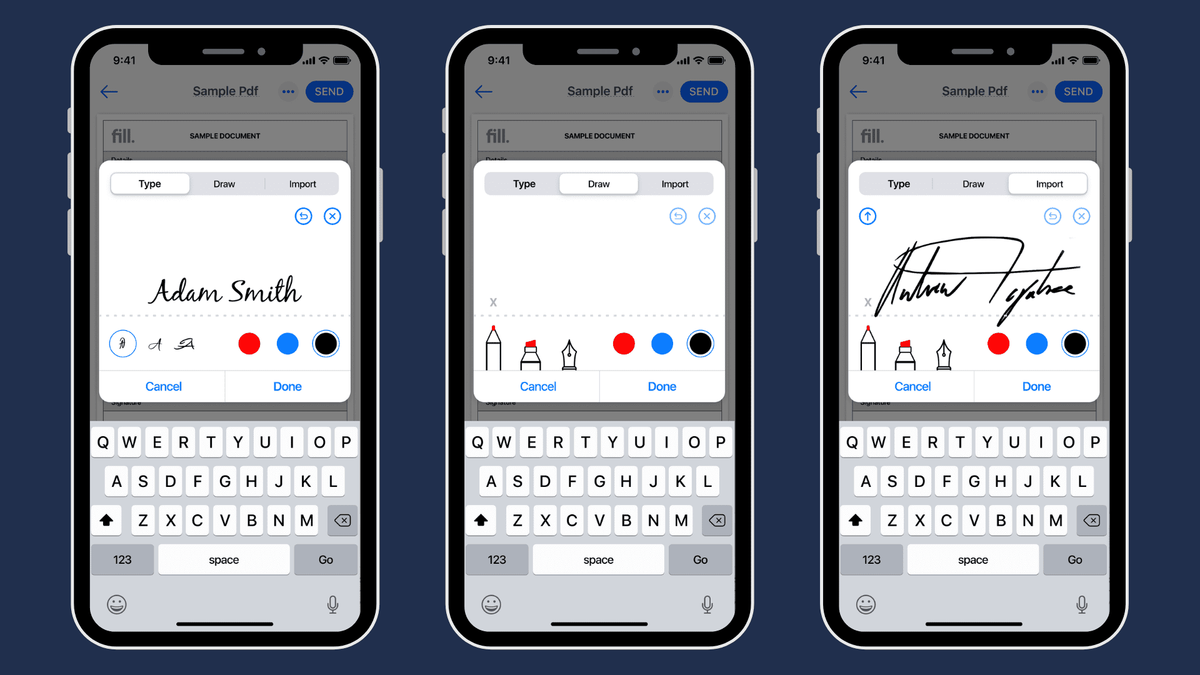
- Draw: use your finger on the touchscreen to draw your signature
- Type: type your name and choose a handwriting style
- Upload: use a PNG or JPG image of your existing signature
Drawing with your finger is the most natural option on iPhone and produces the most personal-looking result.
Step 4: Place your signature on the PDF.
Tap the area of the document where you want your signature to appear. You can pinch to resize it and drag it to the exact position. You can also add the date, initials, or a text field if the form requires it.
Step 5: Download your signed PDF.
Tap Download. Your signed PDF saves directly to your iPhone. Go to the Files app to find it in your Downloads folder, or tap Share to send it immediately by email or message.
Privacy note: OneClickPDF processes your file entirely in your browser using WebAssembly technology. Your PDF never leaves your iPhone, no server ever receives it. This matters when you're signing contracts, HR forms, or medical documents that contain sensitive personal information.
Method 2: Sign a PDF on iPhone Using Apple Markup (No Third-Party App)
Every iPhone comes with a built-in tool called Markup that lets you annotate and sign PDFs. No download required, it's already on your device.
Best for: Quick signatures on PDFs you already have in your Files app or iCloud Drive.
How to Use Apple Markup to Sign a PDF on iPhone
Step 1: Open the PDF in the Files app.
Open the Files app (the blue folder icon). Navigate to where your PDF is stored — On My iPhone, iCloud Drive, or a connected service like Google Drive or Dropbox.
Step 2: Open Markup.
Tap the PDF to open it. Tap the pen icon (top right corner) to open Markup. Alternatively, tap the Share button (the box with an arrow), scroll through the menu, and tap Markup.
Step 3: Tap the plus (+) button and choose Signature.
At the bottom of the Markup toolbar, tap the + button. A menu appears. Tap Signature.
Step 4: Draw your signature.
A white drawing pad appears. Use your finger to sign your name. If you're not happy with it, tap Clear and try again. When it looks right, tap Done.
Step 5: Position and resize your signature.
Your signature appears on the PDF as a movable element. Drag it to the right position on the page. Use the blue handles at the corners to resize it. Tap anywhere outside the signature box when you're done.
Step 6: Save the signed PDF.
Tap Done in the top left to save. The PDF saves in place with your signature embedded. It replaces the original file in your Files app.
Save your signature for next time: The first time you sign in Markup, your signature is saved. Next time you use Markup Signature, it appears automatically, you don't have to redraw it. To add a new signature, tap Add or Remove Signature on the signature screen.
How to Sign a PDF on iPhone Using Markup from the Share Sheet
If your PDF is saved in a different app (Google Drive, Dropbox, email), you can still use Markup:
- Open the PDF in any app
- Tap the Share button (box with an arrow pointing up)
- Scroll across the top row of icons and tap Markup
- Follow Steps 3–6 above
This works from Safari, Mail, Google Drive, Dropbox, and any other app that supports the iOS Share Sheet.
Method 3: Sign a PDF on iPhone Directly from an Email Attachment
If someone sent you a PDF to sign by email, this is the fastest route. You never need to save the file separately.
Steps for Signing an Email PDF Attachment on iPhone
Step 1: Open the email in the Mail app.
Tap the email that contains the PDF attachment.
Step 2: Tap and hold the attachment.
Press and hold the PDF attachment thumbnail. A menu appears.
Step 3: Tap Markup.
Select Markup from the menu. The PDF opens in the Markup editor.
Step 4: Add your signature.
Tap the + button in the Markup toolbar, then tap Signature. Draw or select your saved signature and place it on the document.
Step 5: Tap Done and choose how to send it back.
Tap Done. iOS asks how you want to use the signed file. Options include:
- Save to Files: stores it in your Files app
- New Message: opens a new email with the signed PDF attached, ready to send back
This is the smoothest workflow when you receive a contract or form by email and need to return it signed.
Method 4: Use an App to Sign PDFs on iPhone (Best for Power Users)
If you sign PDFs regularly, a dedicated app can give you more features, especially for forms with multiple fields, multi-party signing, or audit trails.
Adobe Acrobat Reader (Free with In-App Purchases)
Adobe Acrobat Reader is available free on the App Store. The free version lets you:
- Open and view PDFs
- Fill in form fields
- Add a basic signature using the Fill & Sign tool
How to sign with Adobe Acrobat Reader on iPhone:
- Download Adobe Acrobat Reader from the App Store (free)
- Open your PDF in the app
- Tap Edit then Fill & Sign
- Tap the pen icon and choose Create Signature
- Draw your signature with your finger
- Tap anywhere on the document to place it
- Tap the share icon to save or send the signed PDF
Limitation: Adobe requires a free account to access most features. Some functionality (such as advanced form filling and unlimited exports) requires an Adobe Acrobat subscription.
DocuSign (Free Plan Available)
DocuSign is the industry standard for legally-binding electronic signatures with audit trails. The free plan allows 3 self-signed documents per month.
Best for: Business contracts, real estate documents, HR agreements, and any scenario where an audit trail is legally required. Not necessary for most everyday signing tasks.
How to Find Your Signed PDF After Signing on iPhone
One of the most common frustrations is signing a PDF and then not being able to find it. Here is exactly where to look:
If You Used OneClickPDF in Safari
Tap Downloads in Safari (the down-arrow icon in the top right toolbar in Safari). Your signed PDF appears at the top. Tap it to open, or long-press to move it to a specific folder in the Files app.
Alternatively, open the Files app and navigate to Downloads under the On My iPhone section.
If You Used Apple Markup from the Files App
The signed PDF replaces the original file in its current location. It does not create a new file, it saves over the original. If you want to keep the unsigned original, duplicate the file before adding your signature: tap and hold the file, then tap Duplicate.
If You Signed from a Mail Attachment
If you chose "Save to Files" after signing, the file is in your Files app under the location you selected. If you chose "New Message," the signed PDF is already attached to the outgoing email.
Saving to iCloud Drive for Access on All Your Devices
After signing, you can save your PDF to iCloud Drive to access it on your Mac or iPad. Open the Files app, long-press your signed PDF, and tap Move. Navigate to iCloud Drive and tap Copy.
Comparing iPhone PDF Signing Methods: Which Is Best?
Method 1: OneClickPDF in Safari
- Requires App: No
- Account Needed: No
- Privacy: Files stay on device
- Best For: Any PDF, maximum privacy
Method 2: Apple Markup (Files app)
- Requires App: No (built-in)
- Account Needed: No
- Privacy: Files stay on device
- Best For: PDFs already saved to iPhone
Method 3: Adobe Acrobat Reader
- Requires App: Yes (App Store)
- Account Needed: Yes (free account)
- Privacy: Uploads to Adobe servers
- Best For: Power users, complex forms
Method 4: DocuSign
- Requires App: Yes (App Store)
- Account Needed: Yes
- Privacy: Uploads to DocuSign servers
- Best For: Legal contracts with audit trail
For most people signing a contract, rental agreement, consent form, or HR document, Method 1 (OneClickPDF) or Method 2 (Apple Markup) is all you need. Both are free, require no app installation, and keep your document on your device.
Is an Electronic Signature Made on iPhone Legally Valid?
Yes. An electronic signature created on your iPhone has the same legal validity as a handwritten signature for the vast majority of documents. The legal framework depends on your country.
United States
The Electronic Signatures in Global and National Commerce Act (ESIGN Act, 2000) and the Uniform Electronic Transactions Act (UETA), adopted by 49 states, establish that electronic signatures are legally binding for most contracts and transactions. Drawing your name with your finger on an iPhone is a valid electronic signature under U.S. law, provided both parties intend to be bound by the document.
Exceptions exist: wills, certain real estate deeds, adoption papers, and court orders may have specific requirements. Consult a licensed attorney for these document types.
United Kingdom
The Electronic Communications Act 2000 and guidance from the Law Commission confirm that electronic signatures — including those created on a smartphone — are valid for most business and personal contracts in the UK.
European Union
The eIDAS Regulation (EU No 910/2014) recognizes three tiers: Simple Electronic Signature (SES), Advanced Electronic Signature (AES), and Qualified Electronic Signature (QES). A finger-drawn or typed signature on iPhone constitutes a Simple Electronic Signature, which is valid for most everyday commercial agreements under EU law.
Australia and Canada
Australia's Electronic Transactions Act 1999 and Canada's PIPEDA (with provincial equivalents) both recognize electronic signatures for most contracts. Provincial legislation in Ontario, British Columbia, and Alberta specifically supports mobile electronic signatures for everyday agreements.
For high-stakes documents, large financial transactions, property conveyances, court submissions, always consult a legal professional about whether a higher tier of signature (Advanced or Qualified) is required in your jurisdiction.
Tips for a Better Signature on iPhone
Draw slowly for a cleaner result. Fast swipes on a touchscreen produce jagged, uneven lines. Draw your signature at about half the speed you would on paper for the smoothest result.
Use an Apple Pencil or stylus if you have one. An Apple Pencil (on iPad) or a capacitive stylus produces a much more natural signature than a fingertip. If signing professionally, a stylus is worth using.
Use a thick, dark signature. Black is standard for professional documents. Use a pen width of at least 2-3px in Markup. Thin signatures can disappear when printed.
Zoom in before placing. Pinch to zoom in on the signature field before placing your signature. This lets you position it precisely inside the line without overlapping other text.
Add the date next to your signature. Most contracts require a signed date. In OneClickPDF, tap the text tool to add a date field. In Markup, tap the + button and choose Text to type the date next to your signature.
Double-check before you sign. Read through every page before signing. Once a signed document has been shared with another party, disputing the terms becomes significantly harder.
Troubleshooting: Common iPhone PDF Signing Problems
The Markup button is greyed out or missing
This usually means Screen Time restrictions are blocking Markup on your device. Go to Settings > Screen Time > Content & Privacy Restrictions > Allowed Apps and ensure Markup (or Notes) is enabled. Alternatively, Screen Time may be restricting changes to documents.
I can't find the Signature option in Markup
Make sure you are tapping the + button at the far right of the Markup toolbar, not the pen or highlighter icons. The + opens a menu that includes Signature, Text, Shapes, and Magnifier. If you don't see +, swipe the toolbar to the right to reveal it.
My signature looks blurry or pixelated when printed
This happens when a signature image is placed at a very small size and then scaled up. When using the Upload method, start with a high-resolution PNG (at least 300x150 pixels on a white or transparent background). When drawing, use the largest canvas size available.
The PDF won't open in Markup
Not all PDF viewer apps on iPhone support Markup. The most reliable path is always through the Files app, tap the PDF there, then tap the pen icon. If you're trying to open it from Gmail or another third-party app, download the PDF to Files first, then open it from there.
My signed PDF is much larger in file size
Apple Markup embeds your signature as a high-resolution image, which can increase file size. After signing, compress the PDF at oneclickpdf.net/tools/compress to reduce it before sending. File size reduction of 30–70% is typical without any visible quality loss.
The other person says they can't see my signature
This can happen if the signature was added as an annotation layer that some older PDF readers don't display. In OneClickPDF, signatures are flattened directly into the PDF, making them visible in every PDF reader. In Apple Markup, the signature is also embedded permanently — if the other person can't see it, ask them to update their PDF viewer or try opening it in Adobe Reader.
Summary: The Fastest Ways to Sign a PDF on iPhone
You don't need to print anything, download an app, or create an account to sign a PDF on your iPhone. The two fastest methods are:
For any PDF: go to oneclickpdf.net/tools/sign, upload your PDF, draw your signature, and download the signed file. Your document never leaves your device.
For PDFs already on your iPhone: open the PDF in the Files app, tap the pen icon to open Markup, tap +, choose Signature, and sign with your finger.
Both methods are free, require no account, and are completed in under a minute.