How to Sign a PDF on Mac: Preview, Online & Adobe
Sign a PDF on Mac using Preview, OneClickPDF in Safari, or Adobe Acrobat. Step-by-step guide, comparison table, and tips for all 3 methods. Free & fast.
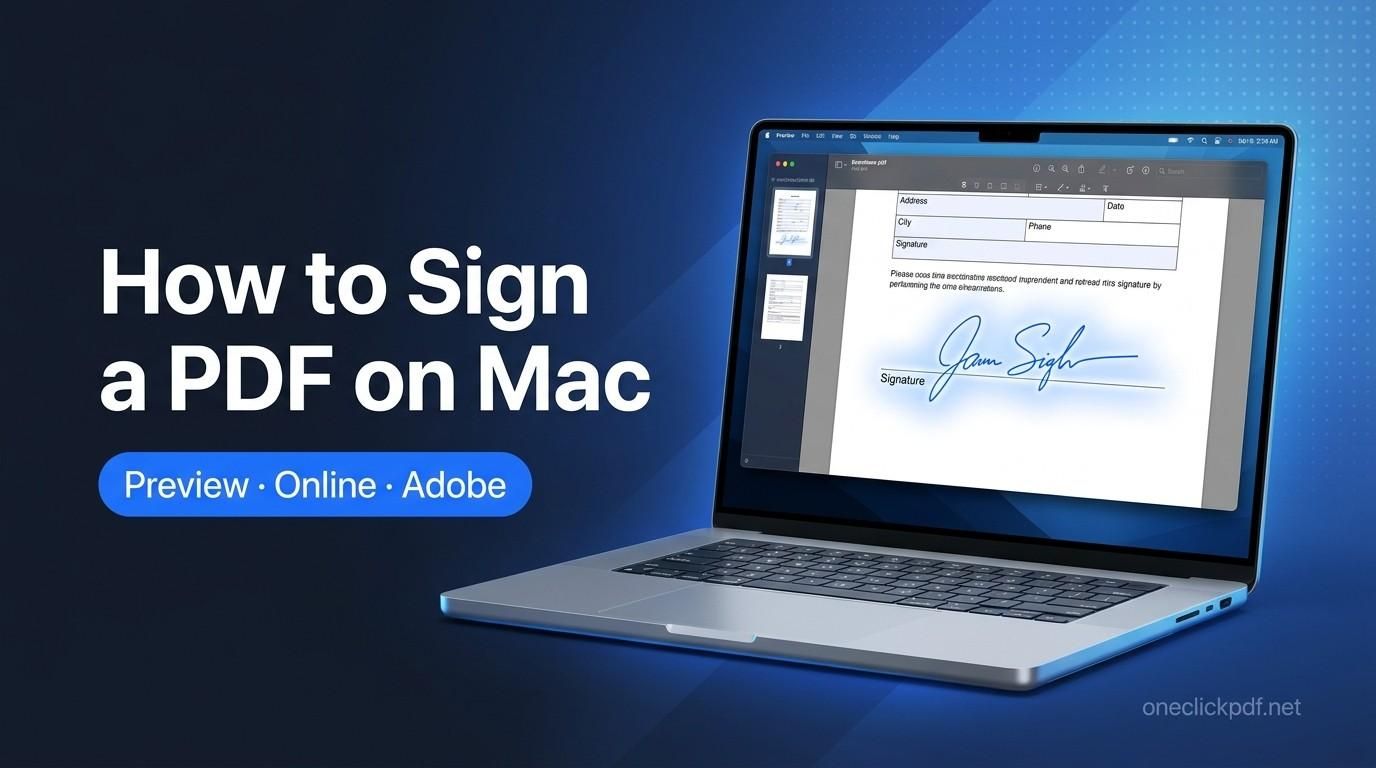
Signing a PDF on a Mac is easier than most people think and you have three genuinely useful options depending on whether you want to use the tool already on your computer, sign privately in your browser without downloading anything, or tap into a professional workflow for sending documents out for countersignature.
This guide covers all three methods with clear, tested steps: Apple Preview (built into every Mac), OneClickPDF in Safari (free, no account, your file never leaves your device), and Adobe Acrobat (the paid option for teams and complex workflows). By the end, you will know which method suits your situation and how to complete the signature in under two minutes.
Method 1: How to Sign a PDF on Mac Using Preview
Apple Preview is installed on every Mac running macOS 10.14 Mojave or later. It handles electronic signatures directly — no downloads, no accounts, no subscriptions. For the majority of everyday documents — contracts, lease agreements, consent forms, permission slips — Preview is all you need.
Step 1: Open the PDF in Preview
Double-click the PDF file in Finder. If it opens in a different application, right-click the file, select Open With, and choose Preview.
Step 2: Open the Markup Toolbar
Click the Show Markup Toolbar button — the pen-tip icon near the top right of the Preview window — or press Shift + Command + A. The toolbar expands to show annotation and signature tools.
Step 3: Click the Signature Tool
In the markup toolbar, click the Sign button — it looks like a cursive signature. A dropdown appears offering you the option to create a new signature or insert a saved one.
If this is your first time, click Create Signature and choose one of three methods:
Option A: Trackpad Signature
Click Trackpad. When prompted, use your finger to sign your name on the trackpad. Sign slowly and deliberately — trackpad signatures reflect the pressure and speed of your stroke. Press any key when finished, then click Done. Your signature is saved for future use.
Option B: Camera Signature
Click Camera. Sign your name in dark ink on a plain white piece of paper. Hold the paper up to your Mac camera so your signature aligns with the blue reference line on screen. When Preview captures your signature cleanly, click Done.
Option C: iPhone or iPad Signature (macOS Ventura and later)
On Macs running macOS 13 Ventura or later, click iPhone or iPad when your device is nearby. A drawing canvas appears on your iPhone or iPad. Use your finger or Apple Pencil to sign your name, then tap Done. The signature appears instantly in Preview.
Step 4: Place and Resize Your Signature
Click your saved signature in the dropdown to insert it onto the page. Drag it to the correct position — typically the signature line on the document. Drag the handles at the corners to resize it proportionally. You can reuse the same signature on multiple pages within the same session.
Step 5: Save the Signed PDF
Press Command + S to save the file. The signature is permanently embedded. If you want to keep an unsigned original, go to File > Export as PDF and save the signed version under a new filename before closing.
“Important: Once you save with Command + S, the signature cannot be moved or removed. If you need to reposition it, use Edit > Undo immediately before saving.
Method 2: How to Sign a PDF on Mac Using OneClickPDF (No Download Required)
OneClickPDF processes your PDF entirely inside your Safari or Chrome browser using WebAssembly technology — the same engine that powers many native apps. Your file is never sent to a server, never uploaded to the cloud, and never stored anywhere outside your own device.
This method is particularly useful when you are on a shared or work Mac where you cannot install software, when the document contains sensitive personal or financial information, or when you want a cleaner result than the Preview trackpad method produces.
Step 1: Open Safari and Navigate to the Sign Tool
Open Safari on your Mac. In the address bar, type oneclickpdf.net/tools/sign and press Return. No installation prompt appears. The tool loads directly in your browser tab with no account creation screen.
Step 2: Upload Your PDF
Click Select File and choose your PDF from Finder — from your Downloads folder, Desktop, iCloud Drive, or any connected location. The file opens in the browser-based editor. Nothing leaves your Mac at this point.
Step 3: Create Your Signature
You have three options:
- Draw — Click Draw and sign your name using your Mac trackpad or mouse. This produces a clean, vector-quality result that scales without pixelation.
- Type — Click Type, enter your name, and select a handwriting-style font. Useful for typed electronic signatures where handwriting is not required.
- Upload — Click Upload and select a PNG or JPG image of your existing signature. The tool automatically removes the background.
Step 4: Place the Signature on the Document
After creating your signature, click the area of the PDF where it should appear. Drag to reposition and use the corner handles to resize. Add a date using the text tool, or add initials to secondary pages if the document requires them.
Step 5: Download the Signed PDF
Click Download. The signed PDF saves directly to your Mac's Downloads folder. The file is processed and assembled locally — the final signed document is never transmitted to any server.
Method 3: How to Sign a PDF on Mac Using Adobe Acrobat
Adobe Acrobat is the industry standard for document workflows involving multiple signatories, audit trails, certificate-based digital signatures, or enterprise compliance requirements. It is a paid subscription product starting at approximately $12.99 per month (Acrobat Standard), though a limited free version — Adobe Acrobat Reader — supports basic Fill & Sign functionality.
“Unlike Preview and OneClickPDF, Adobe uploads your document to Adobe's cloud servers for processing. This is important to understand for sensitive documents.
Using Adobe Acrobat Reader (Free) — Fill & Sign
- Download and install Adobe Acrobat Reader from adobe.com if you have not already done so.
- Open your PDF in Acrobat Reader.
- In the right-hand panel, click Fill & Sign, then click Sign Yourself.
- Choose Add Signature or Add Initials.
- In the pop-up, choose Draw, Type, or Image to create your signature.
- Click Apply to insert it, then drag it to the correct position.
- Click File > Save to preserve the signed copy.
Using Adobe Acrobat Pro — Request e-Signatures
Acrobat Pro adds the ability to send the document for countersignature, set up signing order for multiple parties, receive completion notifications, and download a full audit trail PDF.
- Open the PDF in Acrobat Pro.
- Click Request e-Signatures in the right panel.
- Enter the email addresses of all required signatories and set the signing order.
- Add signature fields, date fields, and text fields by dragging from the toolbar.
- Click Send. Each recipient receives an email link and signs through Adobe's cloud platform.
- You receive a notification when all parties have signed, along with the final document and audit trail.
Comparison: Preview vs OneClickPDF vs Adobe Acrobat
1. Preview:
- Cost: Free (built-in)
- Account required: No
- File upload to server: No
- Signature methods: Trackpad, Camera, iPhone
- Request countersignature: No
- Audit trail: No
- Works without install: No (macOS built-in)
- Best for: Quick everyday signing
2. OneClickPDF:
- Cost: Free
- Account required: No
- File upload to server: No
- Signature methods: Draw, Type, Upload
- Request countersignature: No
- Audit trail: No
- Works without install: Yes
- Best for: Privacy-sensitive docs
3. Adobe Reader (Free):
- Cost: Free
- Account required: No
- File upload to server: Yes
- Signature methods: Draw, Type, Image
- Request countersignature: No
- Audit trail: No
- Works without install: No
- Best for: Adobe form fields
4. Adobe Acrobat Pro:
- Cost: ~$12.99/mo
- Account required: Yes
- File upload to server: Yes
- Signature methods: Draw, Type, Image
- Request countersignature: Yes
- Audit trail: Yes
- Works without install: No
- Best for: Multi-party workflows
Which Method Should You Use?
- Use Preview if you are signing a routine document on your own Mac and already have your signature saved. It is the fastest path, two clicks from Finder to a signed file.
- Use OneClickPDF if the document contains sensitive information, if you are on a shared or managed Mac, or if you want a cleaner signature than the trackpad allows. Your file never leaves your device.
- Use Adobe Acrobat Reader (free) if you regularly work with PDF forms that have interactive fields pre-built for Adobe's Fill & Sign system.
- Use Adobe Acrobat Pro if you manage contracts for a team, need multi-party signing, require a legal audit trail, or need certificate-based digital signatures for regulated industries.
Is Signing a PDF on a Mac Legally Binding?
Yes, electronic signatures created using Preview, OneClickPDF, or Adobe Acrobat are legally valid for most documents across major English-speaking jurisdictions, provided both parties intend to be bound by the agreement.
United States
ESIGN Act (Electronic Signatures in Global and National Commerce Act, 2000) and UETA (Uniform Electronic Transactions Act, adopted in 49 states) give electronic signatures the same legal weight as handwritten signatures for most commercial and consumer agreements.
United Kingdom
The Electronic Communications Act 2000 recognises electronic signatures as legally admissible. Standard electronic signatures are valid for most contracts, employment documents, and commercial agreements.
European Union
eIDAS Regulation (EU No 910/2014) establishes three tiers: Simple Electronic Signature (SES), Advanced Electronic Signature (AES), and Qualified Electronic Signature (QES). Preview and OneClickPDF produce SES-level signatures, valid for most everyday contracts.
Australia
The Electronic Transactions Act 1999 (amended 2011) and state-level equivalents recognise electronic signatures for most agreements.
Canada
PIPEDA at the federal level and provincial legislation — including the Electronic Commerce Act in Ontario — recognise electronic signatures for most transactions.
“Important exceptions in all jurisdictions: Wills, certain property deeds, adoption documents, and court pleadings often require wet ink signatures or specific notarisation. Always consult a legal professional for high-stakes documents.
Tips for the Best Signature on a Mac
- For Preview trackpad signatures: Write slowly and use your fingertip, not your fingernail. The trackpad is pressure-sensitive — a relaxed, deliberate stroke produces a cleaner result.
- Use the iPhone method for the cleanest result: If your Mac runs macOS Ventura or later and you have an iPhone or iPad nearby, the iPhone-based Preview signature almost always produces better output than the trackpad.
- Save your signature in Preview for reuse: Once you create a signature in Preview, it is stored in your Mac's Keychain and available every time you use the Sign tool. You can store up to three signatures.
- For OneClickPDF uploads: Scan a hand-drawn ink signature on white paper and photograph it against a white background with good lighting before uploading as a PNG. The background removal tool works best with high contrast.
- Always verify placement before saving: Use Preview's zoom controls (Command + =) to confirm the signature is precisely on the signature line before pressing Command + S.
Troubleshooting: Common Problems Signing a PDF on Mac
Preview opens a PDF as an image rather than a form
Some PDFs are saved as scanned images rather than true PDF documents. Preview cannot add interactive signatures to image-based PDFs. In OneClickPDF, use the sign tool — it can overlay a signature on any PDF regardless of whether it has embedded text or is image-based.
The Markup toolbar is missing in Preview
If the markup toolbar does not appear, go to View > Show Markup Toolbar. If the option is greyed out, the PDF may be password-protected. You will need to remove the password first using the unlock tool at oneclickpdf.net/tools/unlock-pdf.
Signature appears blurry or pixelated after saving
This typically happens when saving a trackpad signature at low resolution. Use the camera method or iPhone method in Preview, or use the Draw option in OneClickPDF, which produces vector-quality signatures that remain sharp at any zoom level.
Preview cannot open the PDF at all
If Preview returns an error or shows a blank page, the file may be corrupt or encrypted with an AES-256 password. Try opening it in OneClickPDF or Adobe Reader to check for password protection, then unlock before signing.
The PDF has required fields marked in red (Adobe form)
Some PDFs are built with Adobe's AcroForm technology and have mandatory fields that validate input using JavaScript — which only runs in Adobe Reader or Acrobat Pro. Use Adobe Reader's Fill & Sign tool to complete these forms. Preview does not execute PDF JavaScript.
Signature saves but is not visible when the recipient opens the PDF
This can happen if the PDF was saved using Export rather than Save (Command + S) in Preview, which sometimes creates an unsigned copy. Re-open the file, confirm the signature is visible, and save using Command + S. Verify by opening on a different device.
Summary
Signing a PDF on a Mac takes less than two minutes once you know which method to use:
- Apple Preview is the fastest option for everyday documents already on your Mac — open, sign, save, done.
- OneClickPDF is the most private option, processing your file inside Safari with no server upload — ideal for sensitive documents or shared Macs.
- Adobe Acrobat is the right choice when you need to send a document for countersignature, require an audit trail, or work in a regulated industry.
All three methods produce legally valid electronic signatures across the US, UK, EU, Australia, and Canada for standard commercial and personal agreements.
For a fast, private signature on your Mac right now, go to oneclickpdf.net/tools/sign in Safari, no download, no account, and no trace left behind.
Frequently Asked Questions
Can I sign a PDF on a Mac for free?
How do I sign a PDF in Preview on a Mac?
What is the difference between an electronic signature and a digital signature on a Mac?
Does signing a PDF in Preview on a Mac upload my file?
How do I sign a PDF on a Mac without Adobe?
Is a PDF signature made on a Mac legally valid?
Can I sign a PDF on a MacBook Air or MacBook Pro?
How do I add a date next to my signature on a Mac PDF?
Can I sign a multi-page PDF on a Mac?
What should I do if the PDF already has a signature field?
Try these tools next
Sign PDF Online Free
Draw your signature, type it, or upload an image — then place it anywhere on your PDF in seconds. Legally valid under the ESIGN Act (US), eIDAS (EU), and Electronic Communications Act (UK). No account is needed.
Merge PDF
Combine multiple PDF files into a single document in seconds.
Compress PDF
Shrink large PDFs for email, web upload, or cloud storage. Our compression preserves image clarity and text sharpness — you choose the quality level.
Protect PDF
Add 256-bit AES password protection to any PDF with one click. Or remove an existing password from a PDF you own — instantly, in your browser.
Unlock PDF
Remove password protection from a PDF you own.
Compare PDFs
Side-by-side diff to spot changes between two PDF versions.
Redact PDF
Permanently black out names, account numbers, addresses, or any sensitive content before sharing. Redactions are baked into the file — not just overlaid.