What Is PDF Metadata? What It Reveals About You and How to Check
Every PDF carries properties you never see on the page: often your name, the time you made it, the app you used, sometimes the folder it came from. Here's what PDF metadata is, how to check it, and what clearing it really removes.
What is PDF metadata? It's information stored inside a PDF about the file itself: its title, its author, the app that made it, and when it was created and last changed. None of it shows on the page, but anyone who opens the document's properties can read it. That can mean your full name, the time you finished the document at night, and sometimes the folder it was saved in, user name included.
This guide explains what PDF metadata can give away, how to check it, and what the different ways of removing it really remove.
What is PDF metadata, exactly?
A PDF can carry its details in more than one place:
- The document properties. Title, author, subject, keywords, creator (the app you wrote in), producer (the program that made the PDF), and the created and modified dates. This is what most PDF readers show in their Document Properties window.
- A second copy in XMP. Many apps also write the same details in a format called XMP, and it can hold more: its own dates, a document ID, and a history of when the file was saved and by which program.
- Custom fields. Some apps add their own, such as a company or department name. Many viewers and editors don't show them.
The pages don't depend on any of this, so changing it doesn't change how the document looks or prints.
What it can say about you
Here is a made-up price list, saved by an imaginary Sarah Mitchell, as it arrived in our Edit Metadata tool:
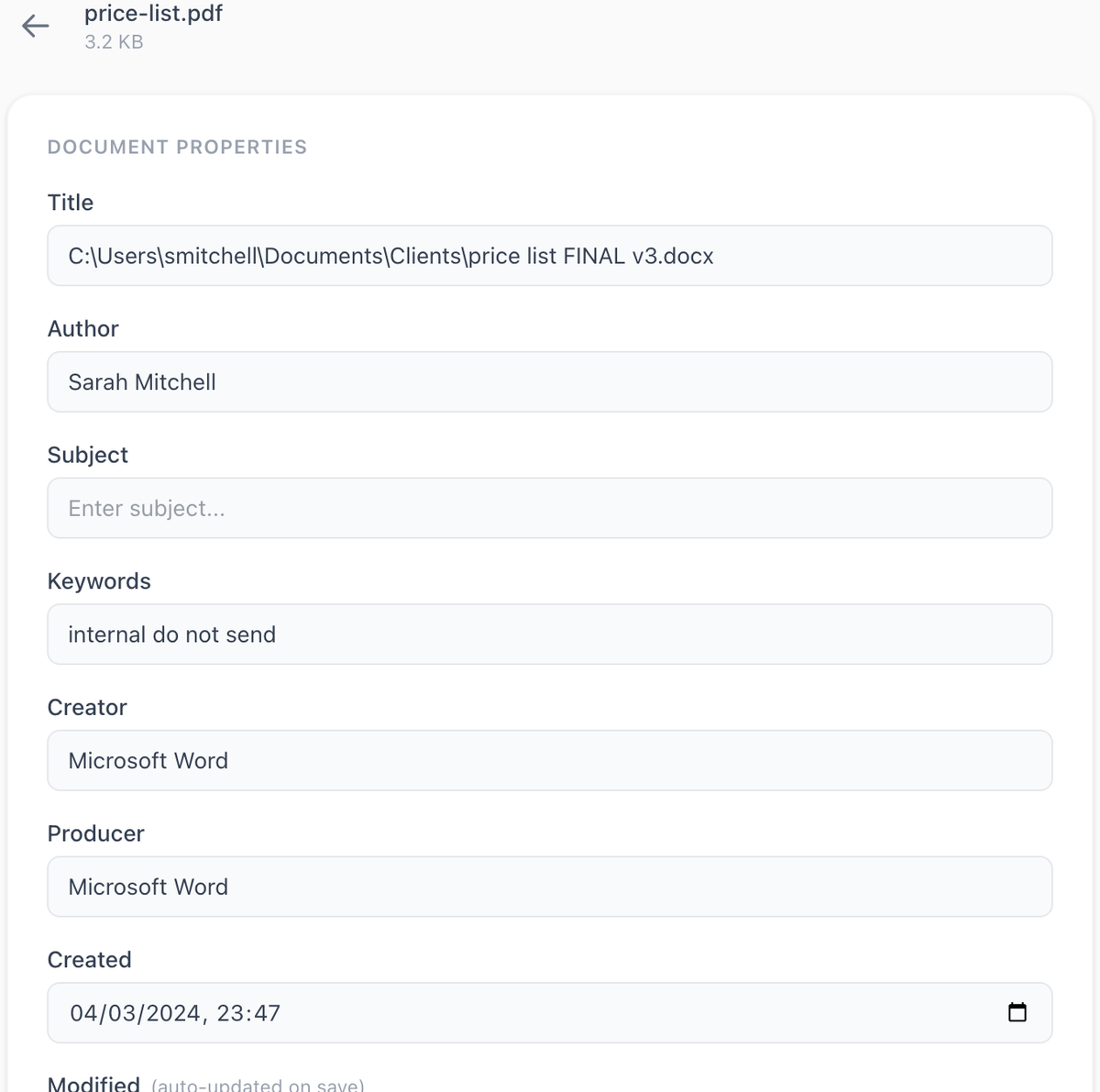
Nothing in that list is on the page. It tells a reader:
- Who made it. The author is often the name of the account you're signed in with.
- Where it came from. Some apps use the original file name as the title, and sometimes the whole path, with your user name and folder names in it ("Clients", "FINAL v3").
- When. The created and modified dates are precise to the second, and often include your time zone. A late-night time or a creation date years ago can say more than you'd like.
- What you used. The creator and producer name the app and sometimes its version or your operating system.
- Leftovers. Keywords and subjects copied from a template or an older document ("internal", "draft", a client's name).
- What you can't see. Custom fields like a company name, and in the XMP copy, a save history and a document ID that can link different copies of the same document.
How to check a PDF's metadata
- Open Edit Metadata and choose your PDF. It's read in your browser and isn't uploaded.
- Look at the title, author, subject, keywords, creator, producer and the created and modified dates. You can stop here: closing the page changes nothing.
- Most PDF readers also have a Document Properties window that shows the same basic fields.
Neither may show everything. Edit Metadata doesn't show custom fields or the XMP copy's dates and save history, and a reader's basic properties window may not either. If a file is truly sensitive, assume there's more in it than any properties window lists.
How to remove metadata from a PDF, and what each way leaves behind
Change or blank the fields with Edit Metadata
Edit Metadata lets you rewrite or blank the title, author, subject, keywords, creator and producer, and change the created date. Where the file also keeps those fields in its XMP copy, the tool updates them there too, so a reader that prefers XMP shows the same thing. When we blanked the author of our test file, the old name wasn't left anywhere in the saved copy.
What it doesn't do:
- The created date can be changed but not removed, and the modified date becomes the time you save.
- Custom fields it doesn't show are kept as they are. Our test file's hidden company name survived.
- The XMP copy's own dates, document ID and save history stay as they were.
So it's the right tool for fixing a wrong author or a file path in the title. It isn't a tool for removing all metadata.
Redact the file, if you're redacting anyway
If you're blacking out content before you share, Redact PDF gives you a new PDF made of page images with the boxes painted in. None of the original's properties, XMP copy or custom fields come with it: it has only its own new dates and the name of the program that made it. The trade-off is that its text can't be selected or searched, and links and form fields are gone. It also runs in your browser.
Acrobat Pro's sanitise option
Adobe's guide says to "sanitize the document to remove information that is not visible in the file, such as comments, metadata, or hidden layers" after redacting, and notes it's available only in Acrobat Pro, Premium or Studio (Adobe, "Remove sensitive information", updated 28 June 2026).
Watch out for tools that only add to the file
A PDF can be changed by adding the new version to the end of the file, with the old one still inside. ExifTool, a popular metadata tool, writes PDFs this way: its documentation says "old information is never actually deleted from the file" and that the original can be recovered (ExifTool PDF tags, revised 29 May 2026). Other editors can save like this too. Whatever you use, check the copy you'll send.
Metadata isn't the only thing hidden in a PDF
The properties are one kind of hidden data. A PDF can also carry comments and sticky notes, attached files, filled-in form values, bookmarks, and earlier versions of pages saved at the end of the file. Our post on whether a redacted PDF can be unredacted covers how those give away what people thought was hidden.
Stop it at the source
- Check the name your writing app puts in the Author field, and change it in the app's settings if it's not what you want on every file you send.
- Give files plain names before you export. Some apps turn the file name or path into the title.
- Clear old keywords and subjects from templates you reuse.
- Before sending anything sensitive, look at its properties once. It takes ten seconds.