Can You Remove Redaction From a PDF? Only If It Was Done Badly
A properly redacted PDF can't be unredacted: the hidden words are no longer in the file. A black box drawn on top of text is another story. Here is why redactions fail, the leaks people miss, and how to redact a PDF in your browser so nothing comes back.
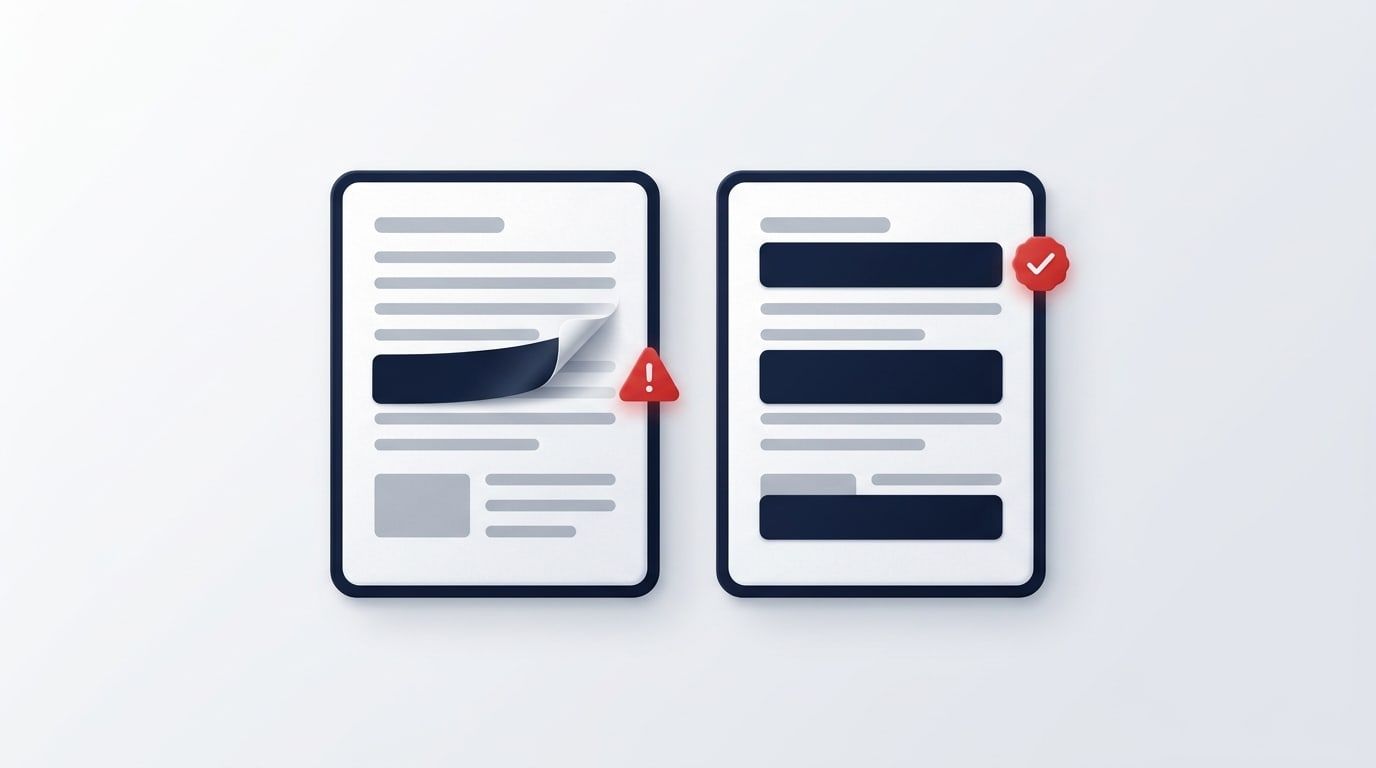
Can you remove redaction from a PDF? If the redaction was done properly, no. Real redaction deletes the hidden words from the file, so there is nothing left to bring back, even for the person who made it. If someone only drew a black box on top of the text, the words are still in the file, and anyone who copies the line can read them. That is why redactions fail, and it's the reason to check your own before you send it.
This post explains the difference, the leaks people miss, and how to redact a PDF so it stays redacted.
Can a redacted PDF be unredacted? Real and fake redaction
A PDF stores its text as characters, and the page you see is drawn from them. That gives you two very different things that both look like a black bar:
- Fake redaction: a black rectangle, a black highlight or a comment box placed on top of the text. The page looks covered, but the characters underneath are untouched. They can be selected, copied, searched and read aloud by a screen reader.
- Real redaction: the covered content is removed from the file and the black bar marks where it was. There is nothing underneath to recover.
The only way back from real redaction is the original, unredacted file. That is why the people who redact should keep their original safe, and why a redacted copy should never replace it.
Why black boxes fail: a real example
In January 2019, lawyers for Paul Manafort filed a court document with several passages blacked out. A Guardian reporter found that the hidden text could simply be copied and pasted out of the PDF (Columbia Journalism Review, 10 January 2019). The boxes were on the page; the words were still in the file.
We repeated the mistake on a test letter we made up. We drew a black rectangle over the tenant's name, "Oliver Bennett", and then extracted the text from the PDF. The name came out in full on the first line, as if the box wasn't there. The second mention of his name, further down, had never been covered at all. And the file's title, which nobody looks at, was "Reference letter - Oliver Bennett".
Seven ways a redaction leaks
- Covered, not removed. Black rectangles, black highlights, comments, or text turned white or black so it can't be seen. All of it can still be copied.
- Missed copies. The same name in a later paragraph, a header, a footer, a table or a caption.
- Metadata. The title, author and subject in the document's properties, which often repeat a name or case number.
- Hidden parts of the file. Comments, bookmarks, form field values, attachments, hidden layers, and text sitting outside the visible page area.
- Earlier versions. Some editors save changes by adding them to the end of the file, so an earlier version of a page can still be inside it.
- Blur and pixelation. These are not redaction. In 2022, Bishop Fox researchers reversed pixelated text and advised using solid black bars instead (Bishop Fox, 15 February 2022).
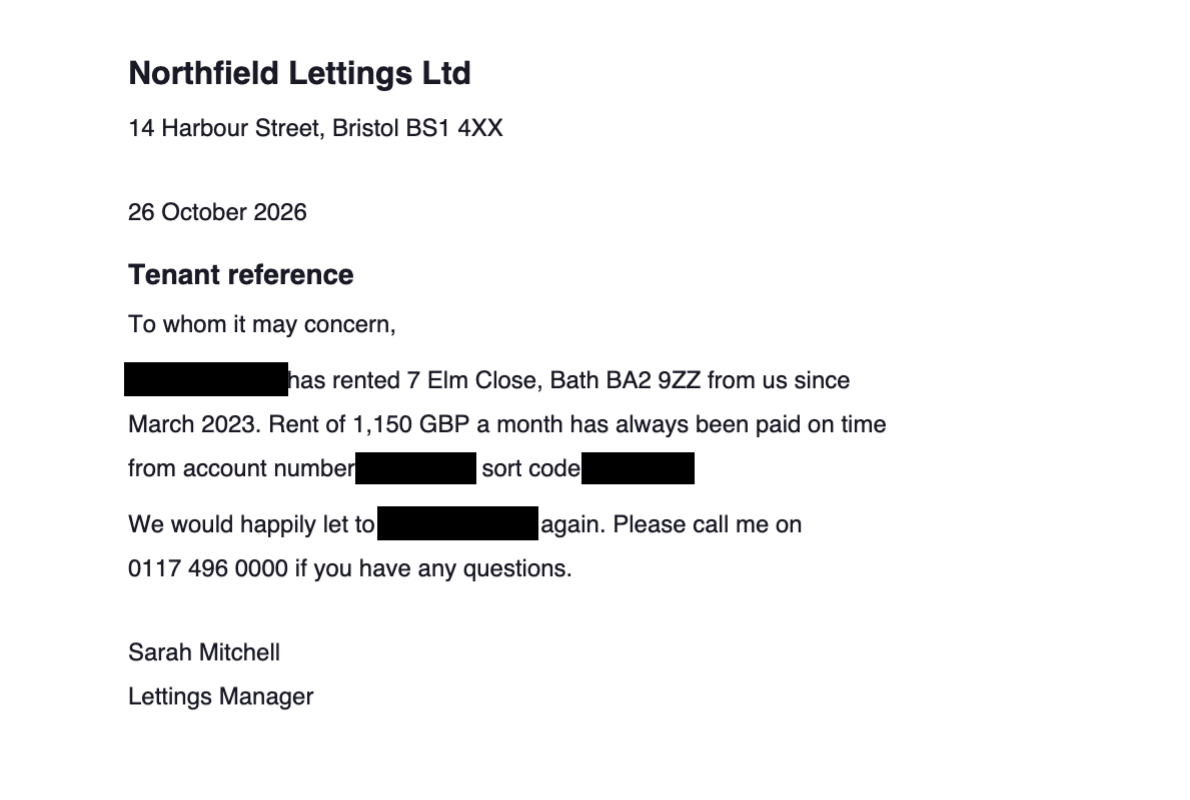
- What's left around the box. In our letter, "has rented 7 Elm Close, Bath" identifies the tenant even with his name gone. The width of a box can also hint at how long the word was.
How to redact a PDF so it stays redacted
Redact PDF runs in your browser: the file is opened on your device and is not uploaded to our servers, which matters for exactly the kind of document you're redacting.
- Open the PDF in Redact PDF.
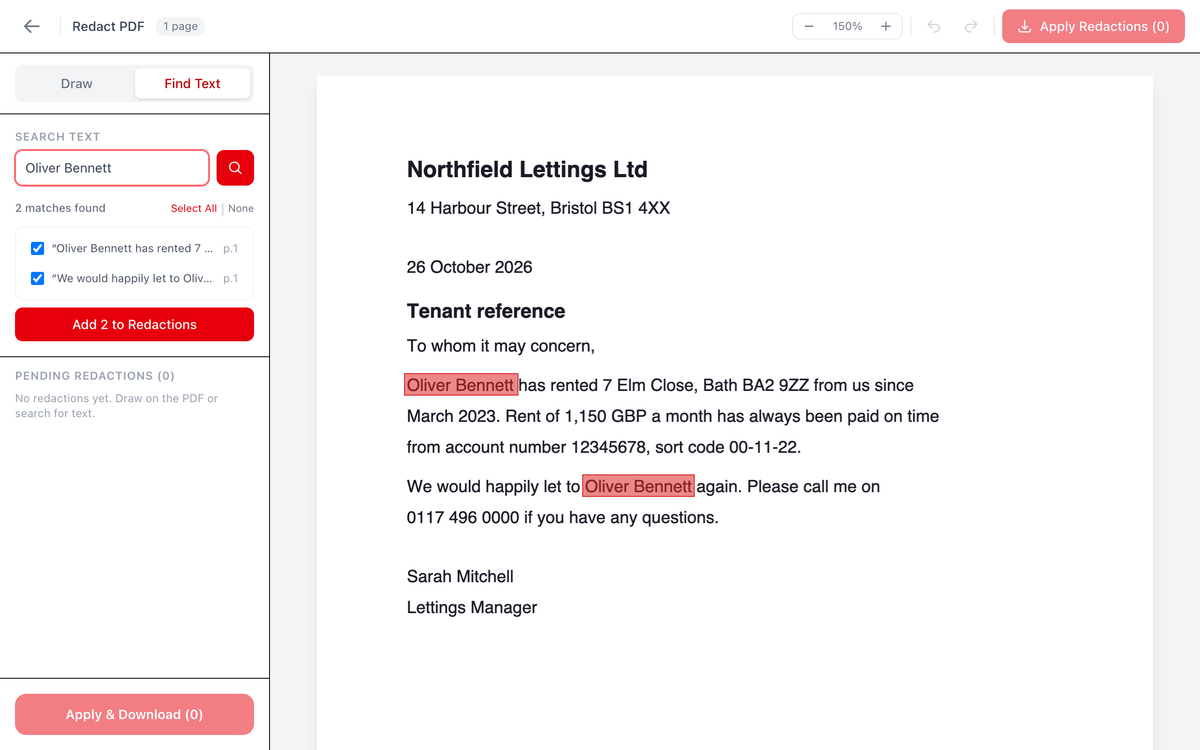
- Choose Find Text and type a name, number or phrase. The search isn't case-sensitive and ticks every match on every page; untick any you want to keep, then press Add to Redactions (the button shows how many).
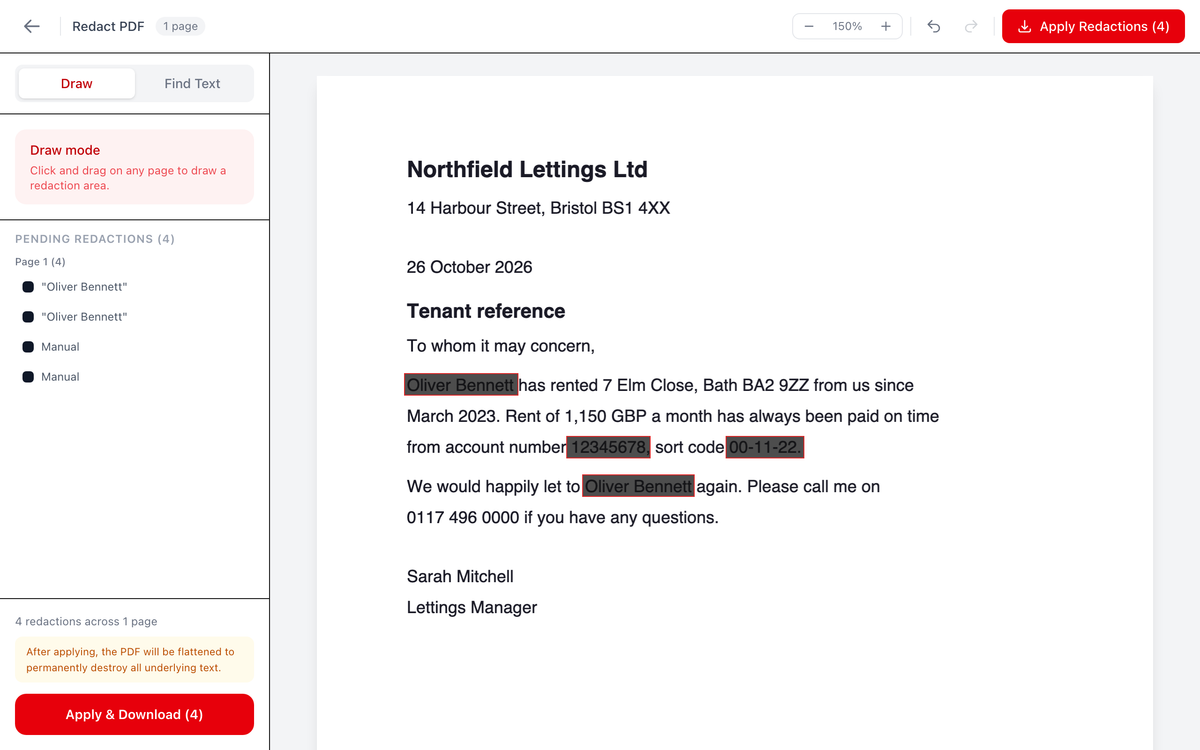
- Switch to Draw and drag a box over anything else: account numbers, a signature, a photo, or any text the search can't find.
- Check the list of pending redactions. Undo and redo work until you apply.
- Press Apply Redactions. The tool rebuilds every page as an image with the black boxes painted into it, and downloads the copy with "_redacted" added to the name.
We ran the test letter through it and checked the result with a text extraction tool. The redacted copy contained no text at all, the original title and author were gone, and each page was a single image at twice normal resolution. The covered words aren't hidden in it; they aren't in it.
What our Redact tool can't do
Rebuilding every page as an image is what makes the result safe, and it has costs. Better to know them before you send the file:
- No selectable text. Nothing in the redacted copy can be selected, copied or searched. If you need that back, run it through OCR PDF, which reads only what is still visible.
- Links, form fields, comments, bookmarks and attachments are dropped, along with the original's metadata. The copy prints and reads normally, but it's a flat document.
- Search finds real text only. A scanned page or text inside a picture has no characters to find, so draw boxes over it. Search also looks within one line at a time: a phrase that wraps onto the next line won't match, so search a shorter part of it.
- Password-protected PDFs can't be opened. Unlock the file first if it's yours and you know the password.
- Bigger files. Our one-page test letter went from under 2 KB to 59 KB, because each page is now a picture.
- The file name stays. If the name itself gives something away, rename the download before you send it.
Check your redacted copy before you send it
Whatever tool you used, spend a minute on your own copy:
- Search the copy (Ctrl+F or Cmd+F) for each word you redacted.
- Try to select text in and around a black box.
- Open the document properties and read the title, author and subject.
- Read the page as a stranger would, and ask what the words around each box still reveal.
With a copy from Redact PDF, the search finds nothing anywhere on the page, which is what you want: there is no text left to find.
Frequently Asked Questions
Can you remove redaction from a PDF online for free?
Can I undo my own redaction?
Is a PDF redacted with OneClickPDF still searchable?
Does redacting a PDF remove its metadata?
Can blurred or pixelated text be read again?
Try these tools next
Redact PDF
Permanently black out names, account numbers, addresses, or any sensitive content before sharing. Redactions are baked into the file — not just overlaid.
OCR PDF
Turn scanned PDFs and image files into searchable, editable text using Optical Character Recognition (OCR) for a live preview. Supports 16 languages.