How to Translate a PDF on Your Phone: iPhone and Android, No App
Google Translate's document feature doesn't work on phones, and most PDF apps want a subscription. Here's how to translate a PDF in your phone's browser: get the file in, check the free first page, pay $0.99 only if you need the rest, and find the download.
You can translate a PDF on your phone without installing anything: open Translate PDF in Safari or Chrome, pick the PDF, choose a language and check the free first page. If you need the rest, it's a one-time $0.99 for about 50 pages, and the translated PDF lands in your downloads.
That matters because the obvious route is closed. Google's help page says plainly that document translation "isn't available on smaller screens or mobile" (checked 26 October 2026). PDF apps that translate have to be installed, and some, such as PDF Expert, keep translation for paying subscribers. If someone has just sent you a letter in French or a form in German, you probably want the answer in the next five minutes, on the phone in your hand.
This guide follows the whole route on an iPhone and on an Android phone, from the email or chat where the PDF arrived to the folder where the translation ends up.
What you need
- The PDF, saved somewhere your phone's browser can reach it (step 1).
- Safari on iPhone or Chrome on Android. We ran steps 2 to 5 in both: in WebKit, the engine behind Safari, at iPhone size, and in Chrome's engine at Android size.
- A PDF with real text in it, the kind you can select and copy. If yours is a photo or a scan of paper, read how to translate a scanned PDF first.
Step 1: Get the PDF onto your phone
A browser can only open files saved on the phone or in a storage app it can reach. A PDF that's still inside an email or a chat has to be saved first.
iPhone, from Mail. Apple's guide says to touch and hold the attachment, then choose Save to Files. Pick a folder you'll remember, such as Downloads in iCloud Drive or On My iPhone.
iPhone, from WhatsApp or another app. Open the document in the app and look for the Share button. Save to Files in the share sheet puts it where Safari can find it.
Android, from Gmail, WhatsApp or another app. Open the attachment and use the app's download or save option, so the PDF is stored on the phone rather than only inside the app.
Step 2: Open Translate PDF and choose your language
- Open oneclickpdf.net/tools/translate in Safari or Chrome.
- Tap the upload box. Your phone opens its own file picker: choose the PDF from the folder you saved it in.
- Under Translate to, choose your language. There are 40 to choose from. You don't pick the document's language: it's detected for you.
- Tap Translate to English (or whichever language you chose).
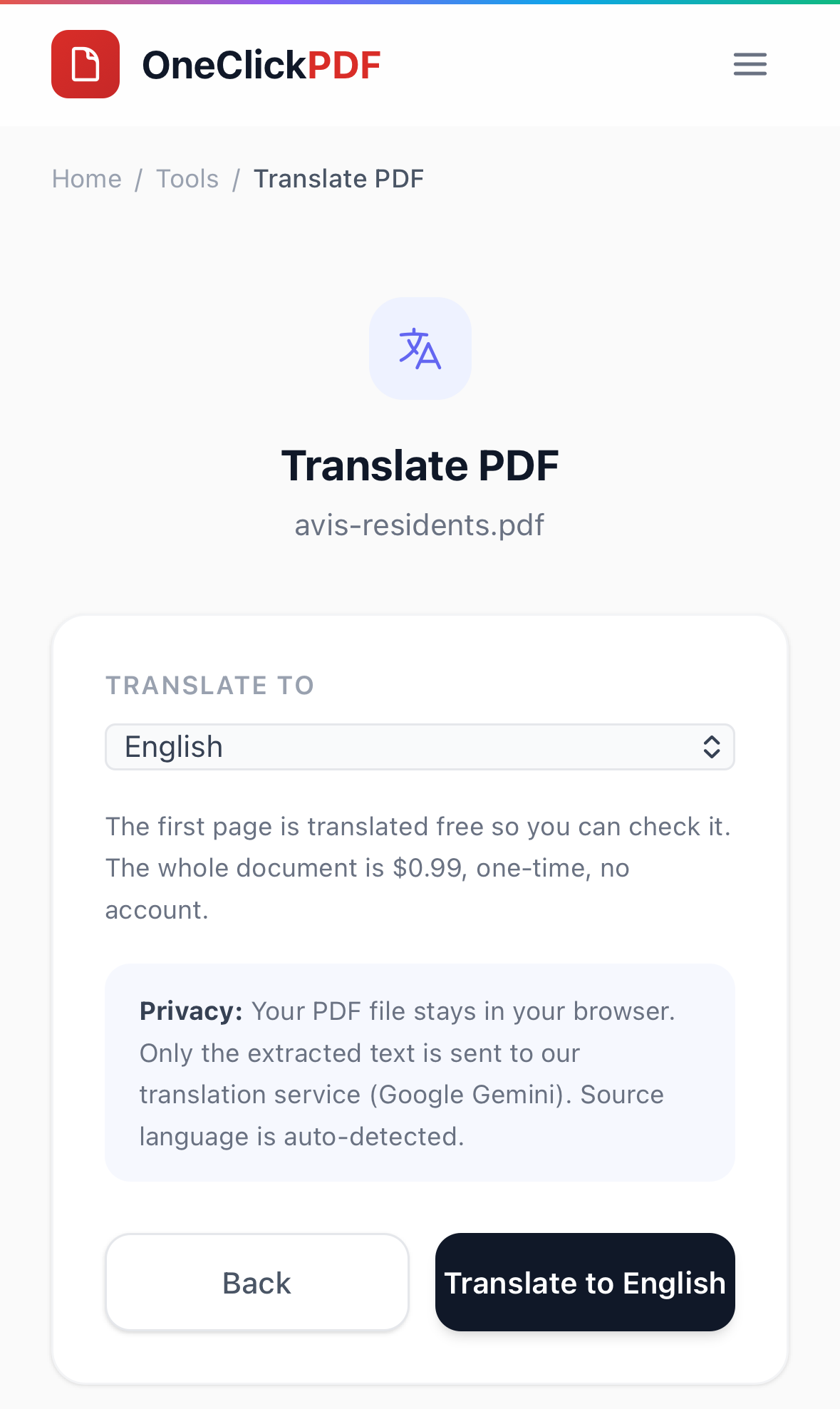
Step 3: Check the free first page
The first page with text in it is translated free, up to 5,000 characters of it, and shown on screen. Read it before you pay for anything. If you picked the wrong language, tap Change language. If the first page is all you needed, tap Download this page and you're done without paying.
You can translate up to 3 free pages a day. They're counted on our server by your internet address, not by a cookie or an account. Phones on mobile data can share an address with other people, so the free pages may run out sooner than you expect. When they have, the page says so, and the whole document is still $0.99.
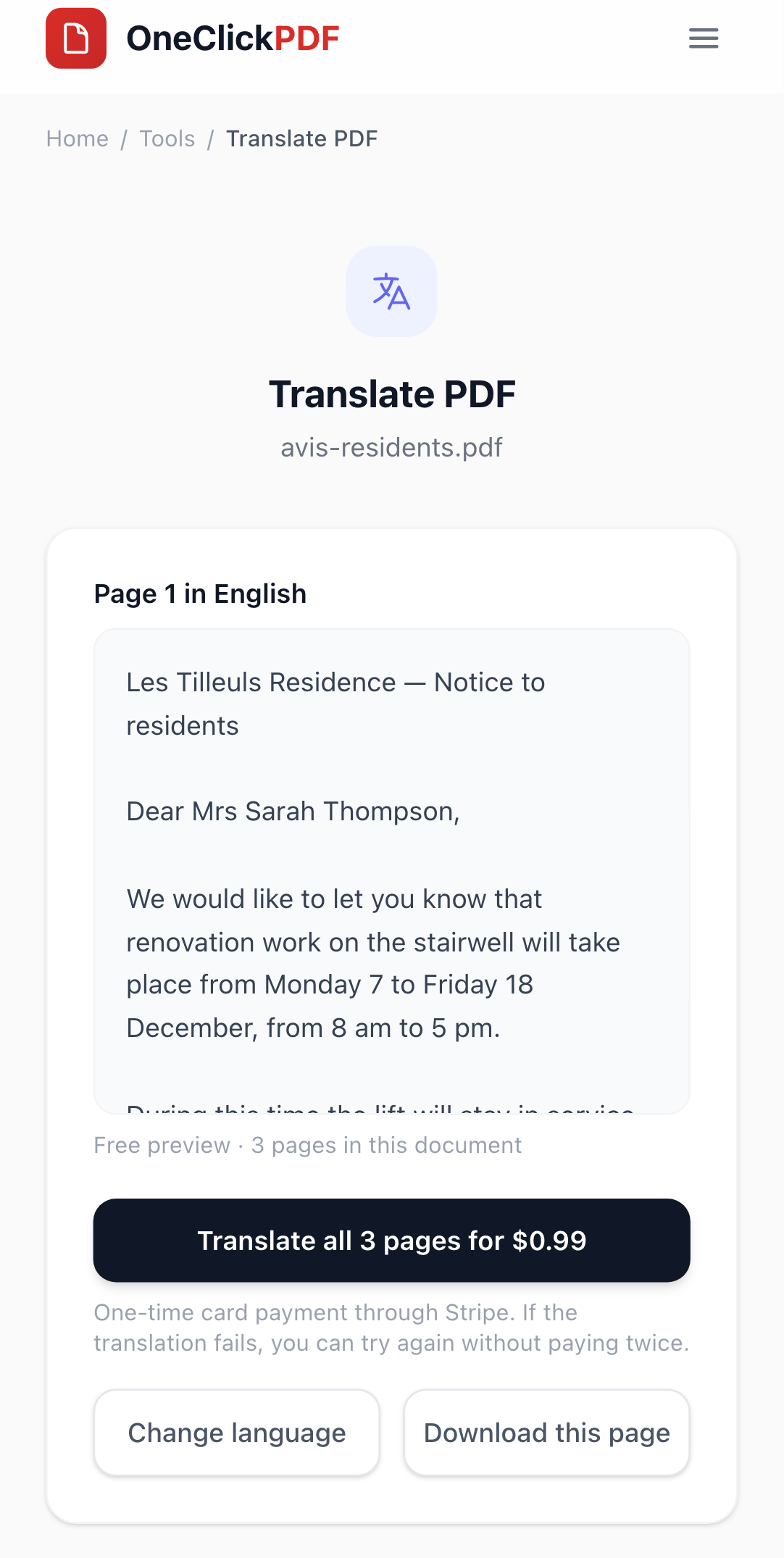
Step 4: Translate the rest for $0.99, only if you need it
Tap Translate all … pages for $0.99. A payment window opens on the same page: it's a one-time card payment through Stripe, with no account to make and nothing to cancel later. One payment covers up to 150,000 characters, about 50 pages of text. If your document is longer, the button names the pages it covers and the rest need another $0.99 afterwards.
In our test run, the first page, already translated free, wasn't sent or charged again. And if a translation fails after you've paid, the screen offers Try again (already paid), which uses the same payment instead of asking for a new one.
Step 5: Download the translated PDF and find it
When the translation is finished, tap Download Translated PDF. The first time, you may see a box offering PDF tips by email. It's optional: tap No thanks, just download.
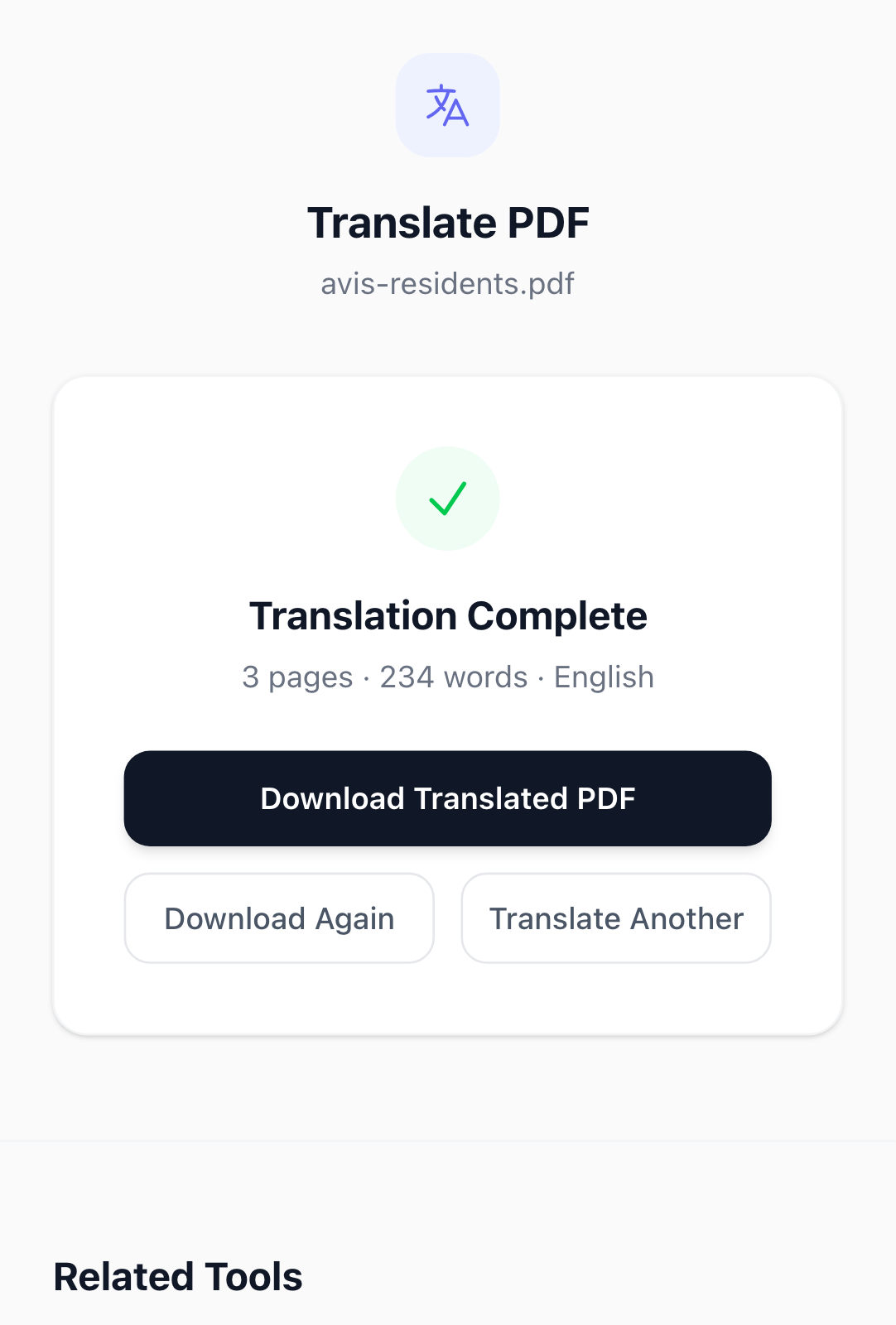
The file keeps your PDF's name with the language code added, so a French notice called avis-residents.pdf comes back as avis-residents_en.pdf. A free single page also gets its page number, as in avis-residents_en_p1.pdf.
Find it on iPhone. Apple's help says that in Safari you tap the Downloads button next to the search field to see recent downloads. Later, open the Files app, tap Browse, then iCloud Drive, then Downloads.
Find it on Android. Google's Chrome help says to tap More (the three dots), then Downloads. If your address bar is at the bottom, swipe up on it first. To see everything you've downloaded, open the Files app.
What the translated PDF looks like
You get the translated text laid out as plain paragraphs on pages the same size as the original's, with a small page number at the top of each. Each of your pages gets its own page; one that's very full can run onto an extra page marked "continued". Text in Arabic, Hebrew, Persian and Urdu runs right to left, and Chinese, Japanese, Korean, Hindi and Thai get fonts that have their characters.
What doesn't come across: pictures, logos, tables, columns, the original fonts and the exact position of each line. For a letter, a notice or terms and conditions, that's usually fine. For a brochure, keep the original open beside the translation.
Translating a PDF on your phone: browser, app or copy-paste?
- One document, now, nothing to install: Translate PDF in Safari or Chrome. First page free, then $0.99.
- You translate PDFs every week on an iPhone: a paid PDF app may suit you better. PDF Expert, for example, includes translation in its Premium subscription and does it on the phone itself (its own page, checked 26 October 2026).
- Just one paragraph: copy the text and paste it into a translation app.
The browser route is for the moment the PDF lands: someone sends you a document you can't read, and you want to read it now.
What it can't do
- It doesn't keep the layout, as above.
- It's a machine translation, so treat it as an aid to understanding. For anything legal, medical or official, check with a person who reads the language.
- A very long document needs a payment for every 150,000 characters or so.