
How to Rotate a PDF in Firefox and Save It the Right Way Up
Firefox's PDF viewer turns pages with one key, but the saved file comes back sideways. Here's the shortcut, why the turn isn't kept, and how to save a PDF the right way up without installing anything.
To rotate a PDF in Firefox, click the page and press R (or Shift+R to turn it the other way). That fixes what you see, but the turn isn't saved: download or save the file and it opens sideways again. To keep it, turn the pages in Rotate PDF, which writes the rotation into the file and runs in Firefox itself, with no upload.
Here's how each part works, and why Firefox doesn't keep the turn.
How to rotate a PDF in Firefox's viewer
Firefox opens PDFs in its own viewer. We tested these steps in Firefox 157 in October 2026.
- Open the PDF in Firefox (click a PDF link, or drag the file onto a Firefox window).
- Click anywhere on the page so the viewer has the keyboard.
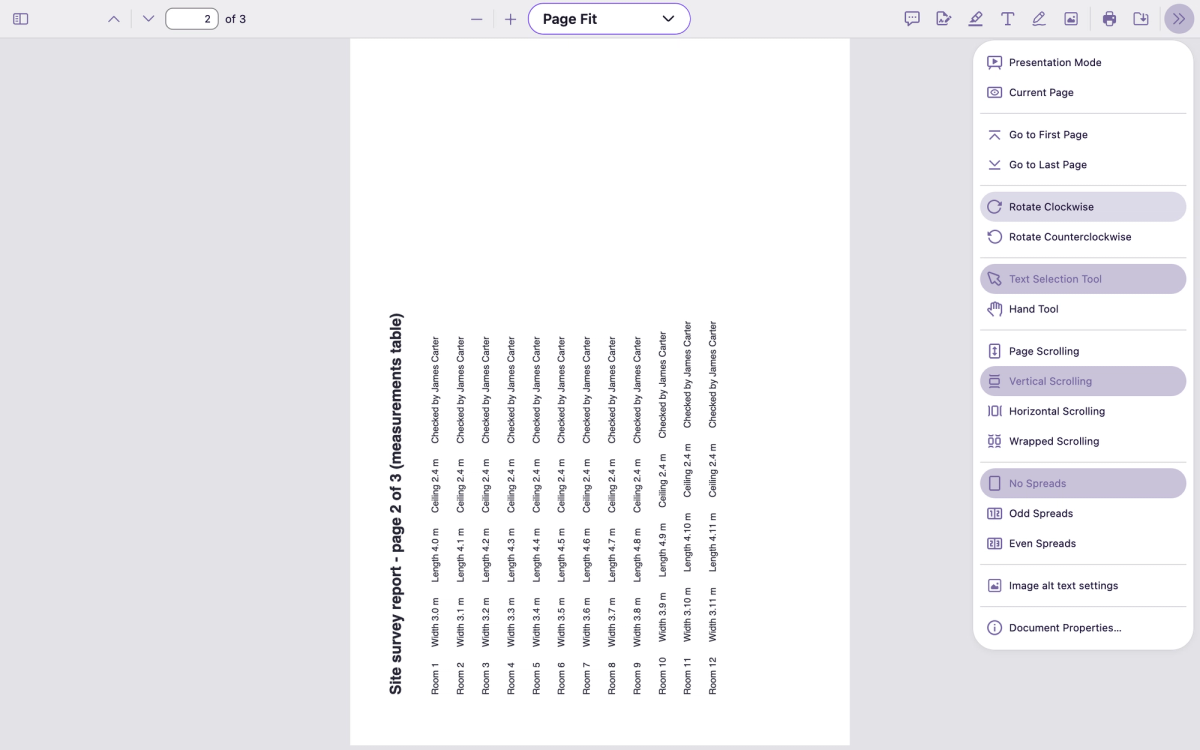
- Press R to turn the pages a quarter turn clockwise. Press Shift+R to turn them anticlockwise. Press again to keep turning.
If you'd rather use the mouse, open Tools (the double arrow at the top right of the viewer) and choose Rotate Clockwise or Rotate Counterclockwise.
Two things to know before you rely on it:
- It turns every page. There's no way to turn page 2 and leave the rest alone. If only one page of a scan came out sideways, the other pages tip over when you fix it.
- It's a view setting. The turn lasts while the tab is open. Close it and open the file again, and it's back the way it was.
Why Firefox doesn't save the rotation
When you press R, Firefox changes the way it shows the pages, not the pages themselves. When you save, it writes the pages as they are in the file, so the sideways page is still sideways.
We checked each way of saving from the viewer in Firefox 157, with a three-page file whose second page was sideways:
- Save (the download button): the saved file's pages all had their original orientation.
- Save after adding text with the Text tool: the text was kept, the turn wasn't.
- Manage > Export selected in the page sidebar: the exported page was also unturned. The sidebar's Manage menu offers Copy, Cut, Delete and Export, but no rotate.
Some guides suggest printing to a PDF instead. In the version we checked, the printed copy is also made from the pages as they're stored in the file, so it doesn't help.
So if you need the file itself turned (to email it, upload it to a portal or print it), the rotation has to be written into the PDF.
How to save a PDF rotated, in Firefox, for free
Rotate PDF works in Firefox, Chrome, Edge and Safari. It opens your PDF in the browser, turns only the pages you choose, and saves a new copy with the turn written into it. Your file isn't uploaded.
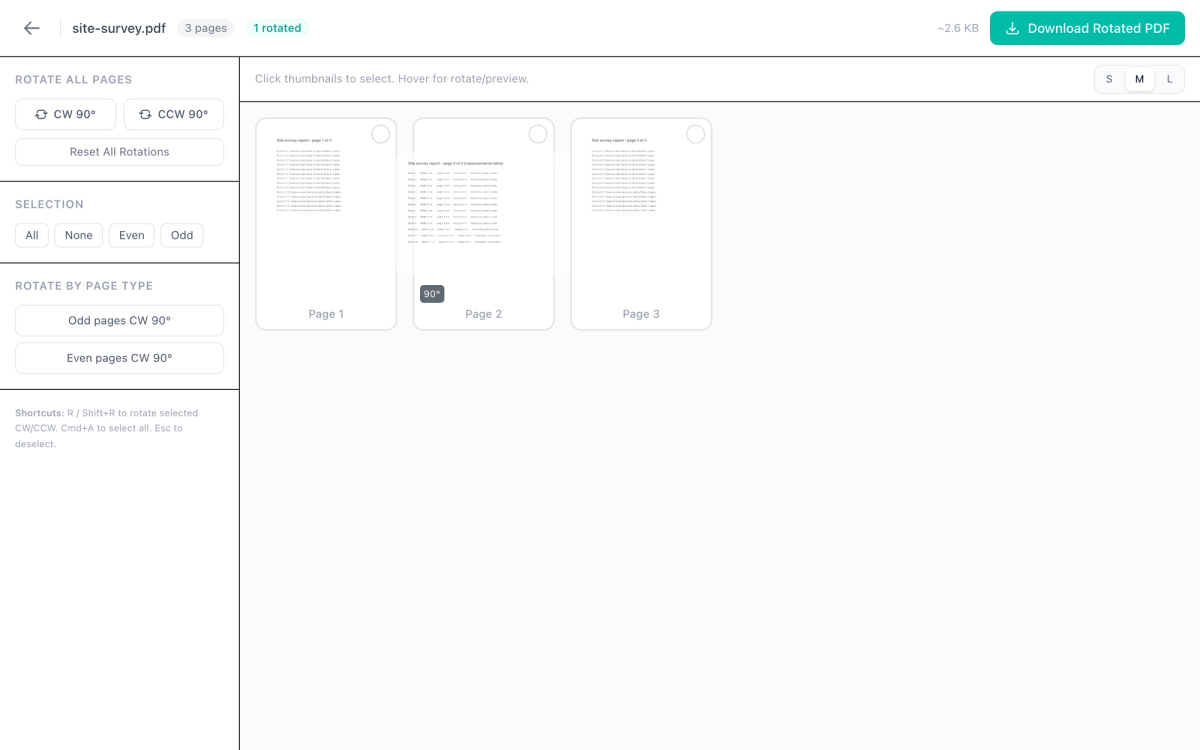
- Go to oneclickpdf.net/tools/rotate and drop your PDF onto the page, or click to choose it. Every page appears as a thumbnail.
- Hover over the page that's sideways and click the rotate button that appears on it. Each click turns it 90° clockwise, and a badge shows the angle (90°, 180° for upside down, 270°).
- To turn several pages at once, click their thumbnails to select them and use Rotate Selected, or press R / Shift+R, the same keys as in Firefox. Rotate All Pages and Odd pages / Even pages buttons are in the sidebar too.
- Choose Download Rotated PDF. You get a copy with "_rotated" added to the file name. You may see a box asking for your email first; it's optional, and you can skip it.
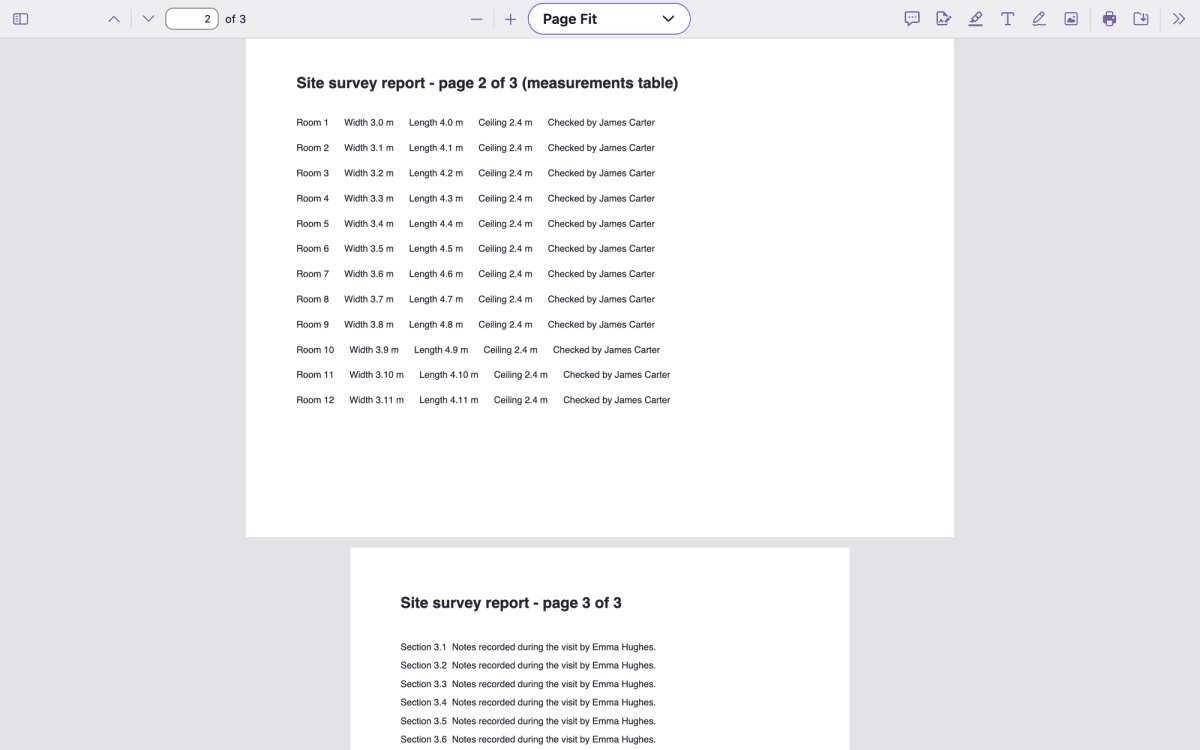
Open the downloaded file in Firefox and the page is the right way up, with no key presses needed. It stays that way on any computer or phone, because the turn is saved in the file.
Which way to turn?
- Text runs upwards (you tilt your head left to read it): turn it clockwise once.
- Text runs downwards (you tilt your head right): turn it anticlockwise once.
- Upside down: turn it twice in either direction.
What stays the same
The words stay selectable and searchable, nothing is redrawn as a picture, and pages you didn't touch are left exactly as they were. Web links in the file are kept. The PDF's bookmarks (the list of sections some viewers show in a sidebar) aren't carried into the new copy.
When you need more than a turn
If the pages are also in the wrong order, or there's a blank page to remove, use Organize Pages instead: it turns pages too, and lets you drag them into order and delete the ones you don't need, all in the browser. For a longer guide to rotating on Mac, Windows and phones, see how to rotate a PDF.
In short: press R in Firefox to read a sideways PDF, and use Rotate PDF when the file itself has to stay the right way up.