Google Translate PDF Not Working? 5 Causes and How to Fix Each
When Google Translate won't take your PDF, or hands it back untranslated, one of five limits on Google's own help page is almost always the reason. Here is how to tell which one, how to fix it, and another way to translate the PDF that doesn't upload the file.
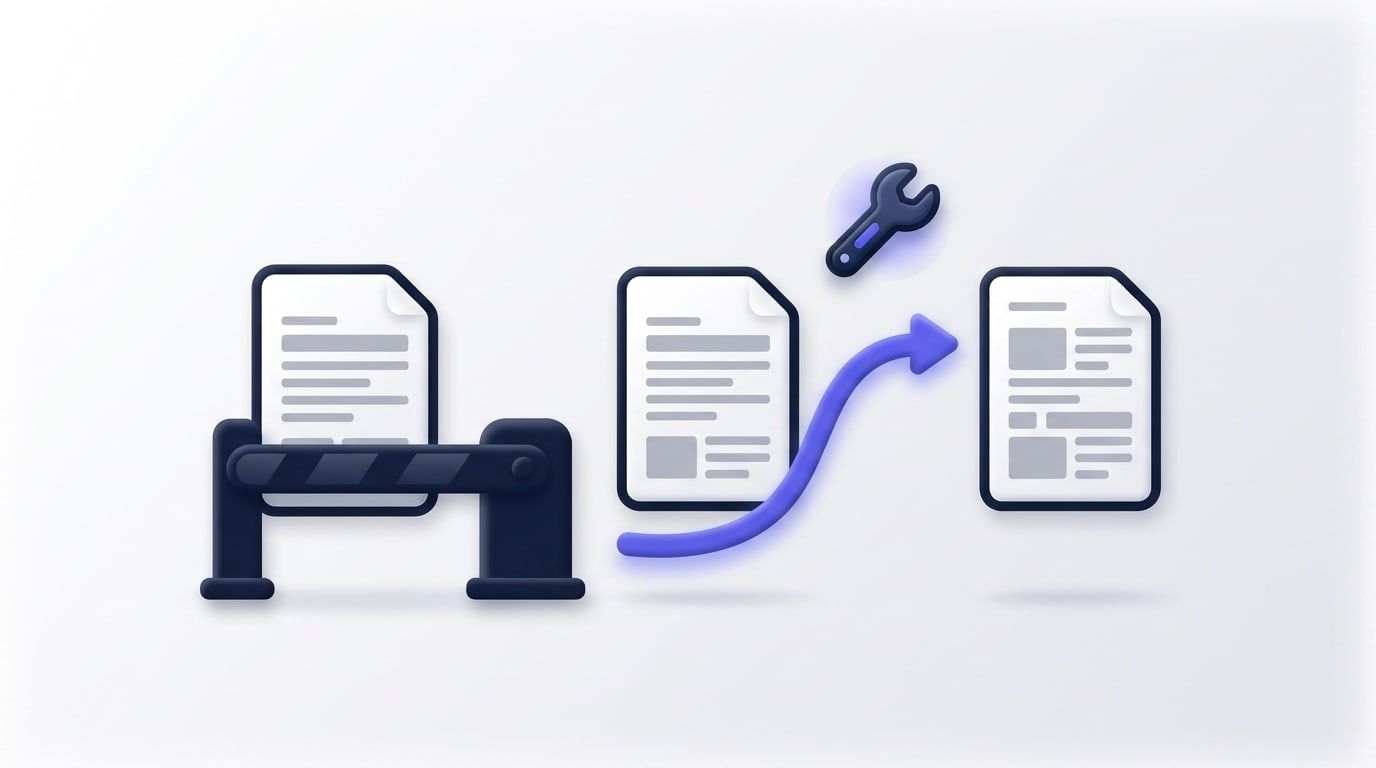
If Google Translate PDF is not working for you, the cause is almost always one of five limits on Google's own help page. The file is too big, it has too many pages, its pages are scans, you're on a phone, or the file isn't a type Google Translate accepts. Below is how to recognise each one and what to do about it, plus another way to translate the PDF if you'd rather not upload the file at all.
The limits here come from Google Translate's help page, checked on 27 October 2026. Google can change them, so check the page if something doesn't match.
Which problem do you have?
- It won't upload, or says the file is too large: see 1 (size) and 2 (pages).
- It comes back, but some or all pages are still in the original language: see 3 (scans).
- There's no document option at all: see 4 (phones) and 5 (file types).
1. The PDF is larger than 10 MB
Google Translate takes documents up to 10 MB. A big PDF is usually big because of its pictures: scanned pages, photos or slides.
- Split it into parts under 10 MB with Split by File Size, then translate each part. Splitting leaves the text as it is.
- Or compress it with Compress PDF. Check the result before you upload it: Compress PDF sometimes gets a file smaller by turning its pages into pictures, and then there's no text left to translate. Drag across a line of text in the compressed file. If it highlights, the text is still there.
Both tools run in your browser, so your file isn't uploaded to us.
2. It has more than 300 pages
Google's page says PDF files must be 300 pages or less. Split a longer document with Split PDF, for example pages 1 to 300 and 301 to the end, and translate each part. A file that is under 300 pages but over 10 MB still needs the fix in section 1.
3. The pages are scans, so the translation comes back unchanged
This is the confusing one, because Google Translate doesn't refuse the file. Google's help page says text in images and scanned PDF pages shows up in the translated document but isn't translated. So you get your file back looking just as it went in.
A scanned page is a picture of a page: there are no letters in it for a translator to read. To check, open the PDF, press Ctrl+F (Cmd+F on a Mac) and search for a word you can see. If it isn't found, or you can't select the words with your mouse, the page is a picture.
Two ways round it:
- Make a searchable copy with OCR PDF. It reads the words on each page in your browser and adds them as real text, which a translator can then work with. It knows 16 languages.
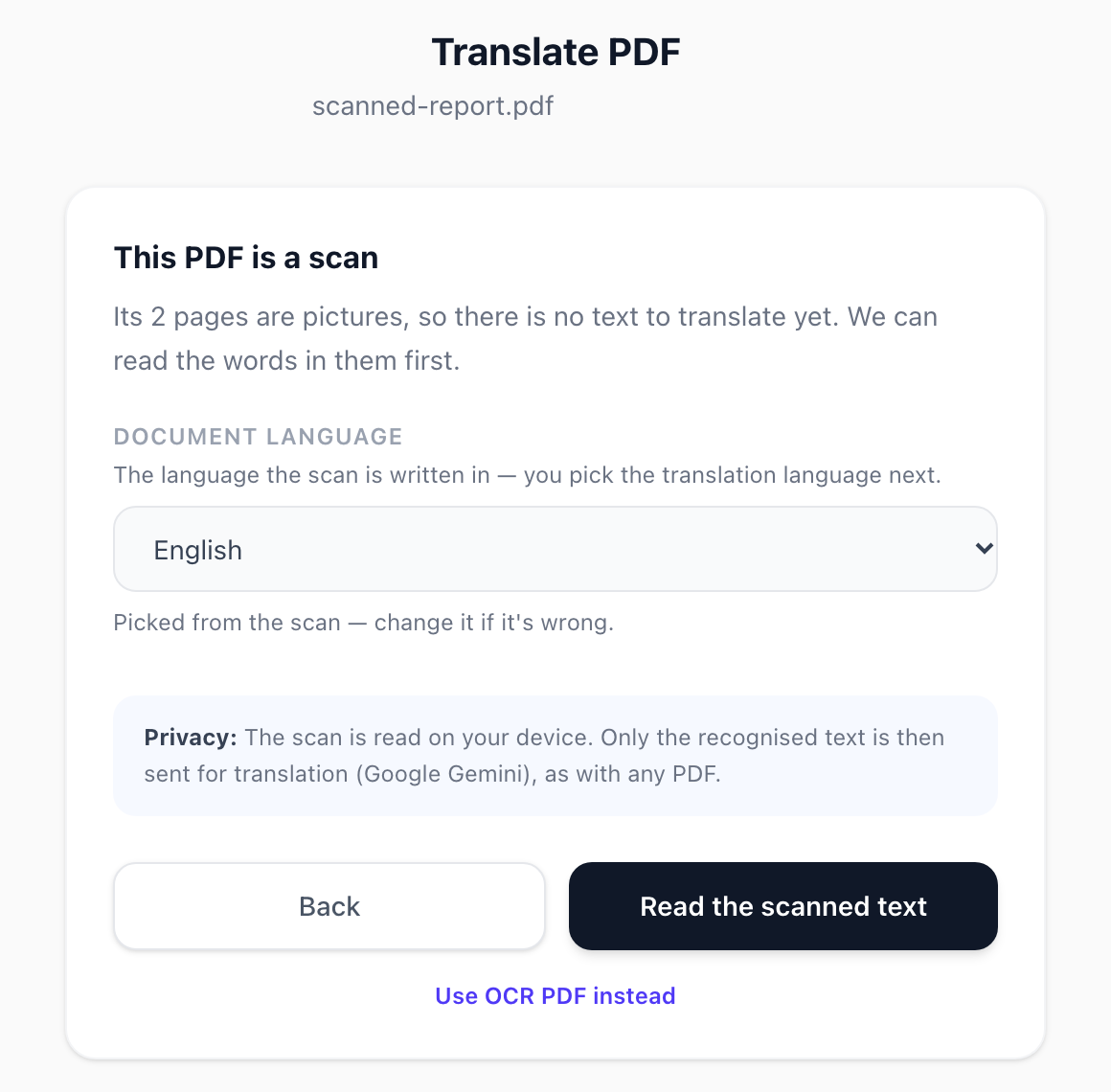
- Or use Translate PDF, which offers to read scanned pages itself before translating them (more below).
If only some pages come back untranslated, the PDF is a mix of typed pages and scanned ones. Make a searchable copy of the whole file with OCR PDF first.
4. You're on a phone
Google says document translation "isn't available on smaller screens or mobile". The Translate app on a phone can translate text you copy and paste into it, which works for a paragraph but not for a whole document.
You can open Google Translate on a computer instead, or translate the PDF in your phone's browser with Translate PDF. Our guide to translating a PDF on iPhone or Android walks through it, including how to find a PDF you received by email.
5. The file isn't a type Google Translate accepts
Google Translate's document option accepts .docx, .pdf, .pptx and .xlsx files. A photo of a page, such as a JPG or PNG, isn't one of them. You can put JPG, PNG or WEBP photos into a PDF with Image to PDF (save iPhone HEIC photos as JPG first), but that PDF is still a picture of the text, so treat it as a scan (section 3).
Another way: translate the PDF without uploading the file
Translate PDF on OneClickPDF is not Google Translate, and it doesn't have the limits above.
- Your PDF stays in your browser. The text is read from it on your device, and only that text is sent for translation, to Google Gemini.
- No 10 MB or 300-page cap. What counts is the amount of text. The first page with text is translated free (up to 5,000 characters, up to 3 free pages a day) so you can check the result. The whole document is $0.99, one-time, with no account. One payment covers up to 150,000 characters, about 50 pages of text, and a longer document needs another $0.99 for the rest. If a translation fails, you can try again without paying twice.
- Scans are read first. When a PDF has no text, it tells you and offers to read the scanned pages on your device, in any of 16 languages. Only the recognised text is then sent.
- It works in a phone's browser, into more than 40 languages, and detects the source language for you.
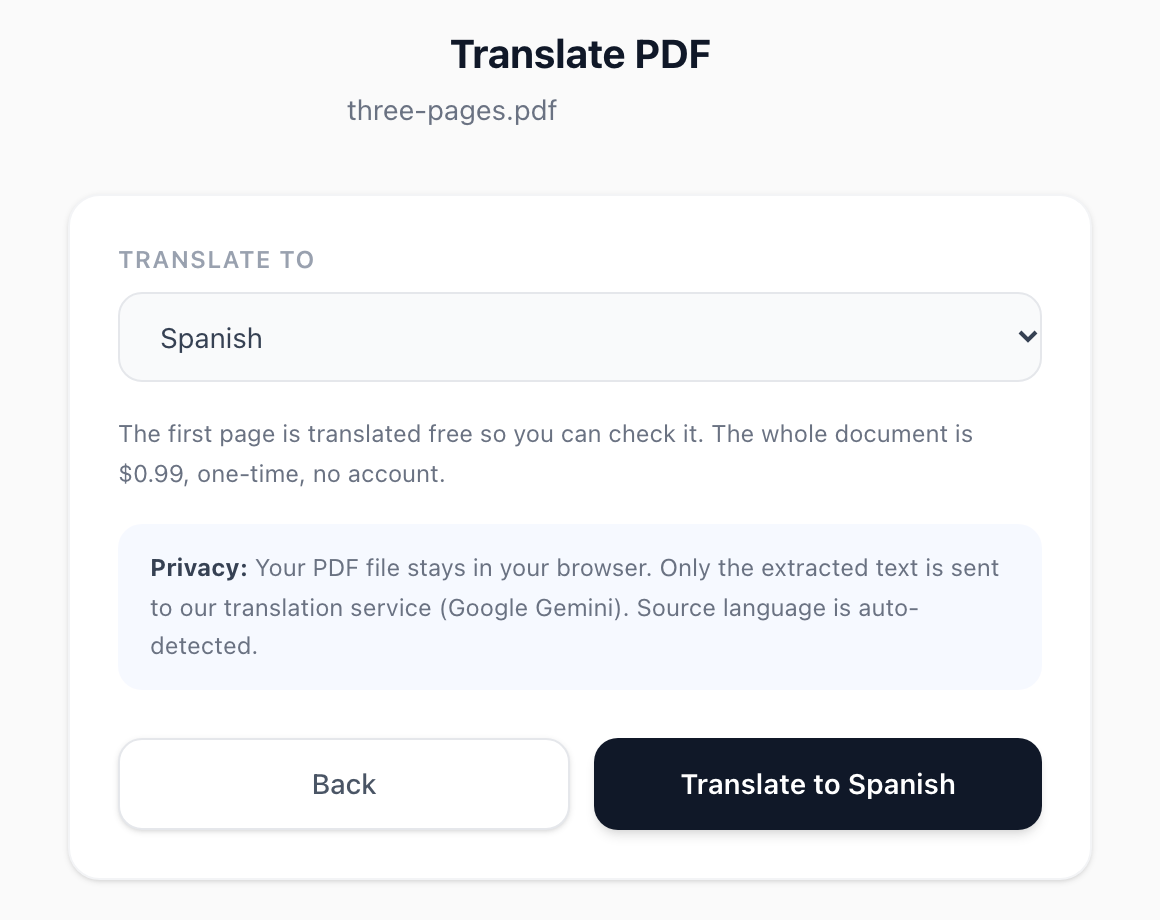
- Open Translate PDF and choose your PDF.
- Pick the language to translate into and press Translate.
- Read the free first page. Download it, or translate the whole document for $0.99.
What it can't do
You get the translated text on new pages of the same size, not the original layout, pictures or tables. A PDF that mixes typed and scanned pages is translated from its typed pages only, so run the scanned pages through OCR PDF first. A password-protected PDF has to be unlocked before it can be read.
Frequently Asked Questions
Why does Google Translate say my PDF is too large?
What is Google Translate's page limit for PDFs?
Can Google Translate translate a scanned PDF?
Why can't I translate a document in Google Translate on my phone?
Does Translate PDF keep the original layout?
Is Translate PDF free?
Try these tools next
Translate PDF
Translate a PDF into 40+ languages with Google Gemini. First page free, then $0.99. Your file stays in your browser; only its text is sent.
Split by File Size
Split a PDF into chunks each under a target file size.
OCR PDF
Turn scanned PDFs and image files into searchable, editable text using Optical Character Recognition (OCR) for a live preview. Supports 16 languages.