
How to Blur Part of a Screenshot in Chrome (and When to Black It Out)
Before you share a screenshot, hide the email, phone number or card details in it. Here's how to blur or black out part of a screenshot in Chrome, why blurred text isn't always gone, and a checklist of what people forget to hide.
You took a screenshot to show someone an order, a chat or a bug, and it has your email address, phone number or the last digits of your card in it. Before you send it, you can blur part of the screenshot or black it out with a solid box. They look alike, but they don't protect you equally well.
This guide shows how to do both in Chrome with the free ScreenSnap extension, when blur is fine and when it isn't, and what people most often forget to hide.
Blur or black out: the short answer
Blur turns the area into coarse squares of averaged colour. The screenshot still looks tidy, and the text can't be read at a glance. Black out (the Redact tool in ScreenSnap) paints a solid box over the area, and the pixels underneath are replaced.
Which to use:
- Blur: faces, profile pictures, a busy sidebar, anything that only needs to be unreadable at a glance.
- Black out: passwords; card, account and order numbers; one-time codes; QR codes.
- Names, emails, phone numbers, addresses: black them out if it really matters; blur is fine if they're only clutter.
If you aren't sure, black it out. It costs you nothing but looks.
Why blurred text isn't always gone
Blur doesn't delete anything. It averages the colours in each square, and those averages still depend on the letters that were there. In 2022, Dan Petro of Bishop Fox showed that pixelated text can be rebuilt: knowing the font and size from the text around it, his tool tried letters until the pixelated version matched. His advice was blunt: "use black bars covering the whole text" (Bishop Fox, 15 February 2022).
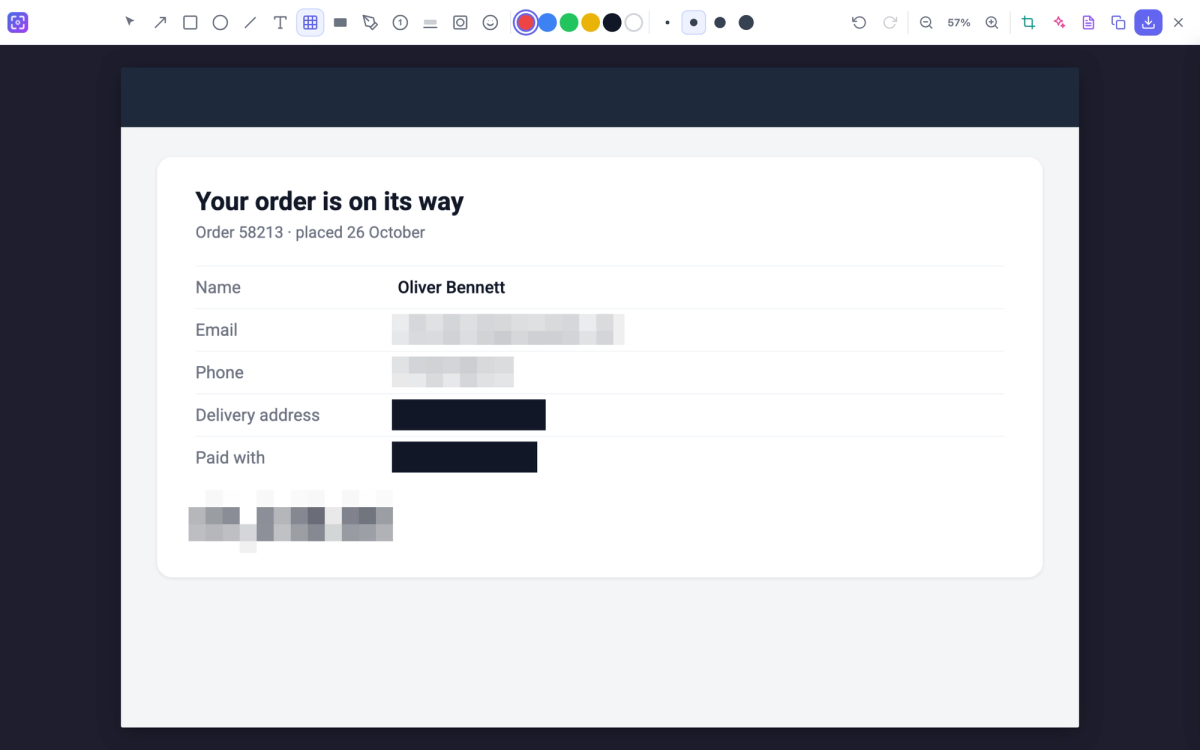
We blurred a made-up order confirmation in the ScreenSnap editor to see what's left. At normal reading size, the email address and phone number can't be read. But each blurred line keeps its length, and on the large total at the bottom you can still see where the comma sits and how many characters there are. Numbers are the weakest case: there are only ten digits to guess from.
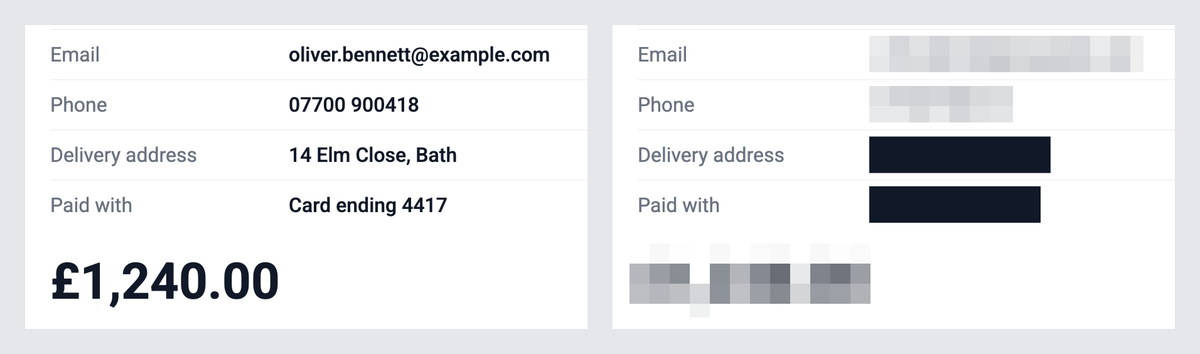
So use blur to tidy a screenshot, and black boxes to protect something. The same goes for PDFs: our post on whether a redacted PDF can be unredacted covers the ways black boxes fail in documents.
How to blur or black out part of a screenshot in Chrome
ScreenSnap is free, needs no account, and opens every capture in an editor with Blur and Redact tools.
- Install [ScreenSnap](/extensions/screensnap) from the Chrome Web Store. "Edit after capture" is on by default, so each screenshot opens in the editor.
- Capture less to begin with. Click the ScreenSnap icon and choose Select Region to capture only the part you need, or Visible Tab for what's on screen. Anything you leave out never needs hiding.
- Blur: in the editor, click Blur (or press B) and drag a box over the area.
- Black out: click Redact (or press F) and drag a box over the text. It's black by default; pick white or another colour from the swatches if that suits the page better.
- Check it. Zoom in on each mark. Make sure every box covers the whole field, with a margin, and that nothing peeks out at the edges.
- Fix mistakes. Choose Select (or press V) to move, resize or delete a mark, or undo (up to 50 steps).
- Save or copy. Save downloads it in the format chosen in ScreenSnap's popup (PNG, JPG or PDF), or click Copy and paste it into an email or chat. The blur and boxes become part of the picture, so nobody can lift them off.
What people forget to hide
Run down this list before you press send:
- The obvious details: names, email addresses, phone numbers, home or delivery addresses, dates of birth.
- Numbers that unlock things: order, account, card, policy and tracking numbers, reference codes, one-time passcodes. Black these out.
- QR codes and barcodes. A phone can read them straight off the picture. Black them out.
- Other people. In a chat or a group email, the other names, phone numbers and profile pictures are someone else's details.
- Web addresses. Some links carry your name, an account number or a sign-in token.
- The rest of your screen. A Whole Screen capture includes notifications, other windows and anything else open. Capture the tab or a region instead when you can.
- What's around the box. "Delivery to 14 Elm Close" still gives the address away with the name hidden. Hide the whole line, not one word.
- The size of the box. A box that fits a name exactly shows how long it is. Draw it a little wider.
If the details are in a PDF, not a screenshot
A screenshot of a PDF only hides what's in the picture. If you're sending the PDF itself, black out the file: Redact PDF paints the boxes in and rebuilds every page as an image, so the text under them is gone. It runs in your browser, so the file isn't uploaded. The trade-off is that the pages are no longer searchable and links and form fields aren't kept. Keep your original: Redact PDF gives you a new file, and the boxes can't be taken back out of it.
Other ways to do it
- Windows 11's Snipping Tool has a Text actions button with Quick redact, which Microsoft says can "automatically hide emails and phone numbers" in a screenshot (Windows Insider Blog, 14 September 2023). Check what it missed: names, addresses and account numbers still need covering by hand.
- Any image editor works if the result is a flat PNG or JPG. Don't share an editable project file: there the box can be a separate layer that anyone can move.
What ScreenSnap's editor doesn't do
- It doesn't find personal details for you. You draw each box.
- Blur has one strength. For anything that matters, use Redact.
- It edits screenshots taken with ScreenSnap; it doesn't open image files from your computer.
- It runs in Chrome only, and the editor needs a connection.
- It can't take back a screenshot you've already sent. Check first, then share.