Why Is My PDF So Big? Six Causes and What Fixes Each
Words take almost no space in a PDF. Photos, scans, whole fonts, attached files and leftovers from old saves do. Here is how to find which one is behind your big file, what each fix gave us on a real example, and which fixes keep your text selectable.
If your PDF is too big to email or upload, something inside it is taking far more space than the words. Text is tiny: a page of plain text came to about 1 KB in our examples. So when someone asks "why is my PDF so big?", the answer is nearly always one of six things: photos, scans, whole fonts, attached files, leftovers from old saves, or very detailed drawings.
Find out which one it is, and you'll know whether a quick compress will do, or whether another fix keeps your text selectable. Every tool in this guide runs in your browser, so your file is not uploaded.
Find what's making your PDF big (two minutes)
- Try to select a word. If you can't, the pages are probably scans (cause 2).
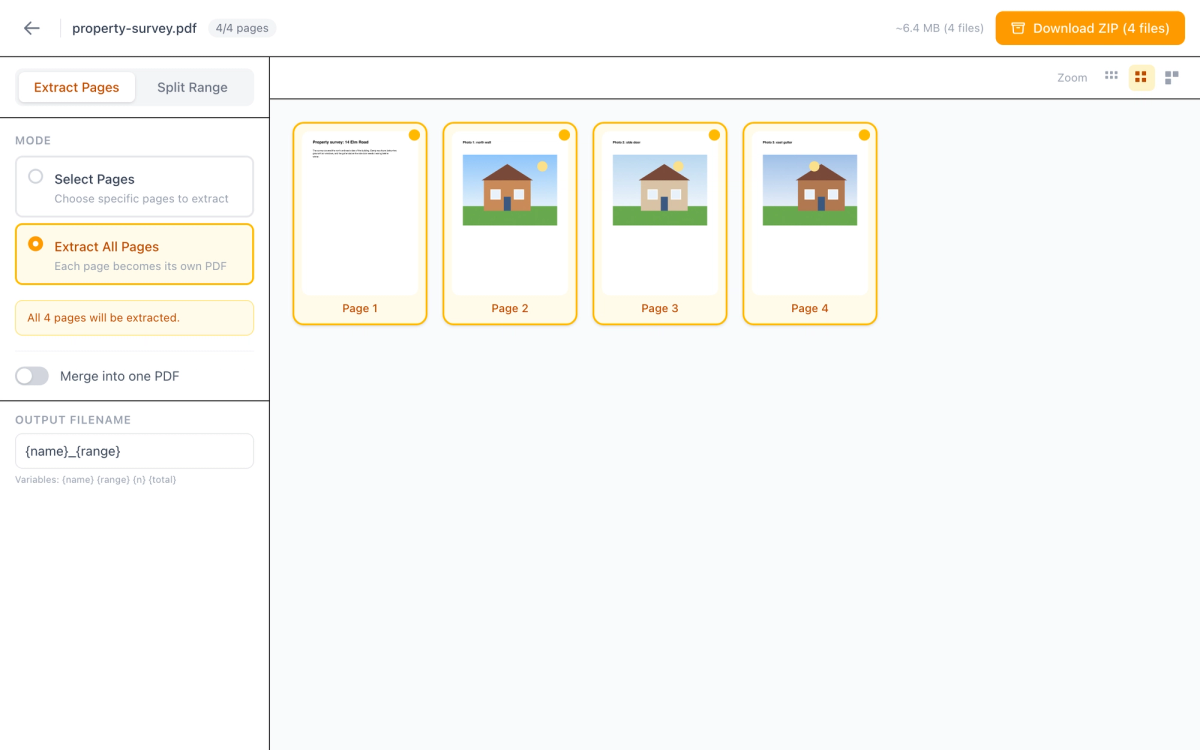
- Find the heavy pages. Open the PDF in Split PDF, choose Extract All Pages, switch Merge into one PDF off and download the ZIP. Open the ZIP and sort the files by size. In our four-page property survey, the text page was 1 KB and each photo page was over 2 MB.
- If no page stands out, look for an attached file (most PDF viewers list them in an Attachments panel, often behind a paperclip icon) or a whole font. In Adobe Acrobat Reader, open Document Properties and the Fonts tab. "Embedded Subset" is fine. "Embedded" on its own means the whole font is stored.
The six causes, and what fixes each
We made one example file for each cause and put it through Compress PDF at Medium. Here is what each fix gave us.
1. Photos at full camera size
A phone photo is often 4,032 × 3,024 pixels, far more than a page needs. Shrinking it on the page doesn't help, because the PDF still keeps every pixel. Our four-page survey with three photos was 9.8 MB.
Fix: Compress took it to 236 KB. If you make the document in Word or PowerPoint, you can also shrink the pictures before you save it as a PDF: select a picture, then Picture Format → Compress Pictures, and tick "Delete cropped areas of pictures".
2. Scans at high resolution, in colour
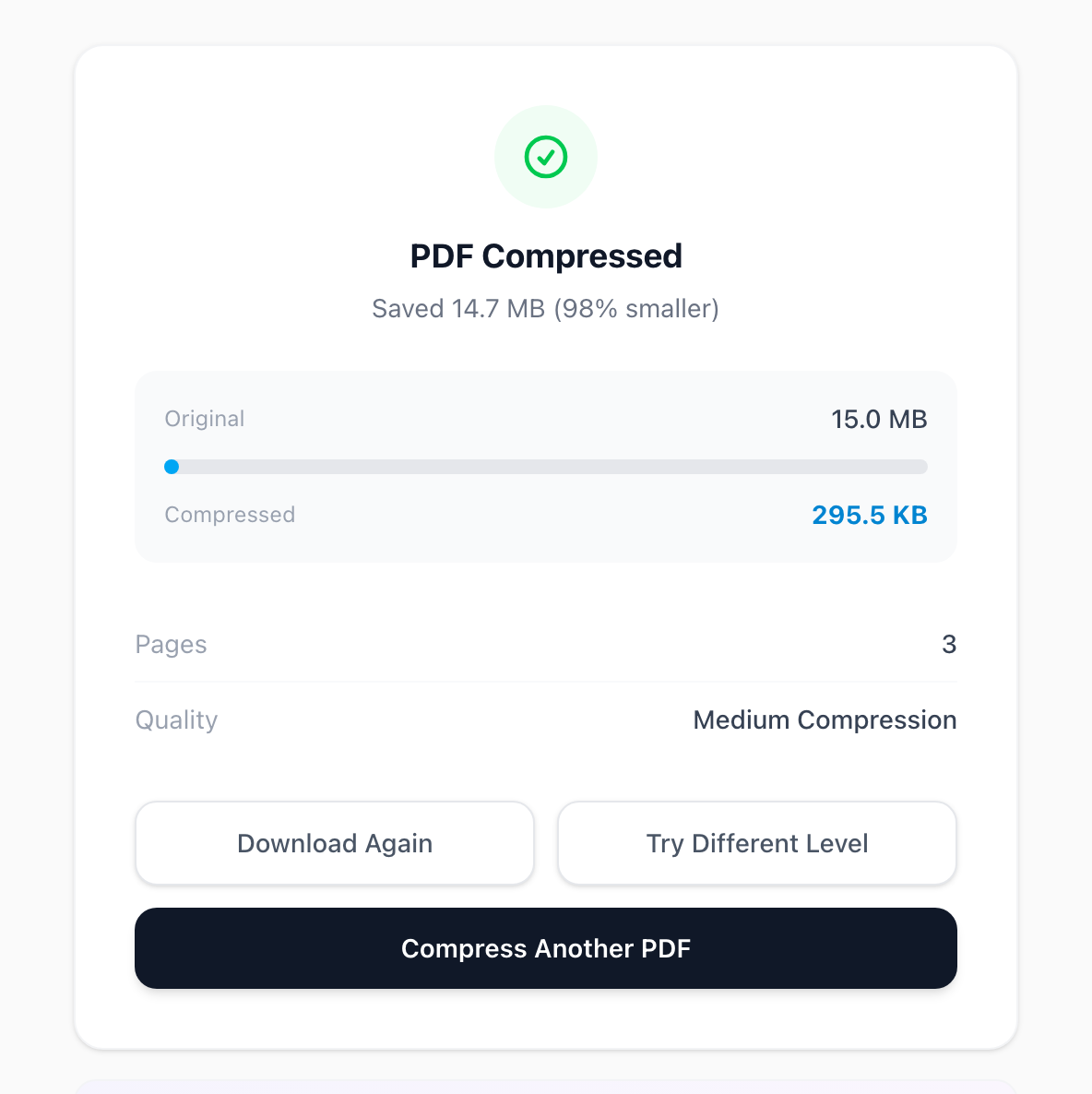
A scanner set to 600 dpi in colour stores each page as one very large picture. Our three-page scanned letter was 15.0 MB.
Fix: Compress took it to 295 KB. A scan has no real text anyway, so you lose nothing there. Then run the smaller file through OCR PDF and download the searchable PDF. Ours came to 309 KB, and every word could be searched and copied again. Next time, scanning letters at a lower resolution, in greyscale, gives a smaller file from the start.
3. Fonts stored in full
Most apps store only the letters a document uses. Some store the whole font, and a font for Chinese, Japanese or Korean can be over 10 MB. Our one-page welcome pack was 11.0 MB, nearly all of it font.
Fix: The fix that keeps the text is to export the PDF again from the app that made it, with the option to embed only the characters used (often called font subsetting) switched on. Compress took it to 25 KB, but the page became a picture.
4. Saved over and over
Some editors add each change to the end of the file instead of rewriting it, so old versions of a replaced picture stay inside. Adobe's advice is to use Save As rather than Save for this reason. Our one-page flyer, with its photo swapped six times, was 8.6 MB.
Fix that keeps text: copy the pages into a fresh file. In Split PDF, choose Extract All Pages and leave Merge into one PDF on. Our flyer dropped to 1.2 MB, its text still selectable, with only the current photo kept. Bookmarks aren't copied, and this isn't meant for fillable forms.
5. A file attached inside
A PDF can carry attachments, such as a spreadsheet or a video. They count towards the size, even though no page shows them. Our two pages of notes with a 6 MB video attached came to 6.0 MB.
Fix: delete the attachment in your PDF viewer, or copy the pages into a fresh file as in cause 4. Ours came to 2 KB, with the text kept and the attachment left behind. Compress left it out too, but stored the pages as pictures (51 KB). If the recipient needs the attached file, send it separately.
6. Very detailed drawings
Plans, maps and charts keep every point of every line. Our two-page site plan, with 4,000 hand-drawn-style lines, was 1.6 MB.
Fix: Compress took it to 333 KB at Medium. Zoom far in and you'll see pixels, so choose Low if detail matters. If the drawing must stay sharp at any zoom, export a simpler version from the drawing app.
The six at a glance
- Photos and scans: Compress, then OCR PDF if you need to search the text.
- Whole fonts: export again from the app that made the file.
- Old saves and attachments: copy the pages into a fresh file with Split PDF.
- Detailed drawings: Compress at Low, or export a simpler drawing.
What Compress does to your file
Compress PDF gives you the smaller of two results: your file re-saved as it is, or each page stored as a picture at about 144, 108 or 72 dpi (Low, Medium, High). If neither is smaller than your file, you get your original back, with the message "This PDF is already as small as it can be".
With all six of our examples the picture version was smaller, so the text was no longer selectable. That's fine for photos, scans and drawings. For a contract you'll search later, use the fix that keeps text, or run OCR afterwards.
A few things to know before you start:
- The file downloads as soon as you press Compress & Download. The before and after sizes appear afterwards, and Try Different Level runs it again.
- It can't open a password-protected PDF, even one that only stops printing or editing.
- If even High can't get under your limit, Split by File Size cuts the PDF into parts that each stay under the size you choose.
Frequently Asked Questions
Why is my PDF so big when it's only one page?
Why can't I select the text after compressing?
Can I compress a password-protected PDF?
Is it safe to compress a PDF online?
My PDF is still too big after compressing. What now?
Try these tools next
Compress PDF
Shrink large PDFs for email, web upload, or cloud storage. Our compression preserves image clarity and text sharpness — you choose the quality level.
Split PDF
Split a PDF into separate files by custom page ranges or every N pages, or extract just the pages you need — in your browser.
OCR PDF
Turn scanned PDFs and image files into searchable, editable text using Optical Character Recognition (OCR) for a live preview. Supports 16 languages.
Split by File Size
Split a PDF into chunks each under a target file size.