
Why Can't I Copy Text From a PDF? Scans, Locks and Broken Fonts
Nothing highlights, Copy is greyed out, or the text pastes as symbols: each points to a different cause. Here is a 30-second test to tell them apart, the fix for each, and the one thing not to do with a PDF that blocks copying.
You select a line in a PDF and nothing happens. Or Copy is greyed out. Or the text pastes as "āĂ㥹Ćć". If you can't copy text from a PDF, it's almost always one of three things: the page is a picture, the author switched copying off, or the file's font mapping is broken. Each has a different fix, and a 30-second test tells you which one you have.
The two tools below, OCR PDF and Extract Text, run in your browser, so your file is not uploaded.
The 30-second test
- Open the PDF in your usual viewer and drag across one sentence.
- Nothing highlights? The page is a picture: cause 1.
- It highlights, but Copy is greyed out or nothing pastes? Copying is switched off: cause 2. In Adobe Acrobat Reader, File → Properties → Security shows "Content Copying: Not Allowed".
- It pastes, but as symbols or the wrong letters? The font mapping is broken: cause 3. Paste into a plain text editor (Notepad, or TextEdit set to plain text) first, to rule out the app you were pasting into.
Cause 1: the page is a picture
A scanned document is a photo of paper. It looks like text, but there are no letters in the file to select. The same goes for photos of documents, pages where a design app turned the words into outlines, and PDFs that some tool redrew as pictures. Many compress, flatten, redact and unlock tools do that, ours included. Redaction does it on purpose.
Extract Text confirms it in a second: on a scan it says "No text found in this PDF. It may be a scanned document — try the OCR tool instead."
Fix: read the page with OCR.
- Open the PDF in OCR PDF and choose the document's language from the list (16 languages).
- Press Start OCR. The recognised text appears next to the page, with the words it is least sure of highlighted. Check those against the page, and correct them in the text box if needed.
- Press Copy, or open the download menu and choose Plain Text (.txt). For a PDF you can search and select later, choose Searchable PDF (overlay). It keeps the pages exactly as they look and adds hidden text under them.
On a three-page scanned letter, OCR read all 966 words, and the searchable PDF came out at 309 KB against the scan's 295 KB. OCR is made for printed text, so handwriting usually isn't read well.
If you made the picture version yourself, for example by compressing or flattening a file, go back to your original. It still has its text.
Cause 2: the author switched copying off
A PDF can open normally while asking viewers not to allow copying, printing or editing. This is different from a password you need to open the file. The person who made the PDF chose it, usually to stop the content being reused.
What to do:
- Ask the sender for a copy that allows copying, or for the text itself, such as the Word file the PDF was made from.
- If it's your own document, open it in the app that set the restriction, enter the permissions password, and switch the restriction off. Or export the PDF again from the original file without it.
What not to do: don't run it through an "unlock" tool and expect to copy afterwards. Our Unlock PDF rebuilds every page as an image. The copy prints and displays fine, but it has no selectable text at all, so you end up at cause 1.
Our Extract Text and OCR tools don't open a PDF that has a password or restrictions, so they can't help with this one. Asking for an unrestricted copy is the clean way through.
Cause 3: the text pastes as gibberish
Here the PDF does contain text, but the part of the file that says which letter each shape stands for is missing or wrong. Your viewer draws the right shapes on screen, so the page looks fine. Copying reads that broken map and hands you the wrong characters. It tends to happen with files from older or specialist software, and with unusual fonts.
We made a short tenancy summary with a broken map. On screen it reads normally. Extract Text pulled out lines like "āĂăĄăąĆćĈ" instead of the words.
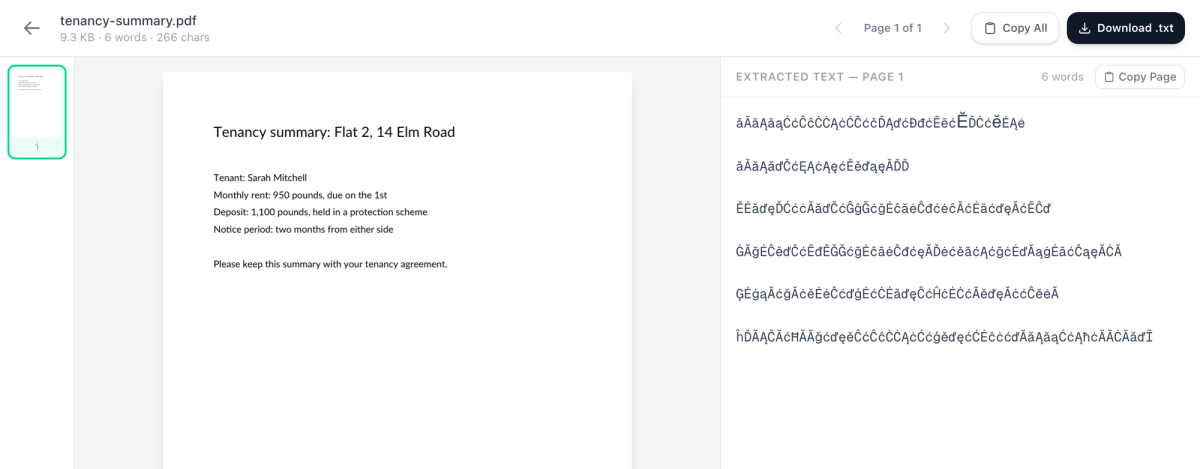
Fix: OCR reads the letters as they look, so it ignores the broken map.
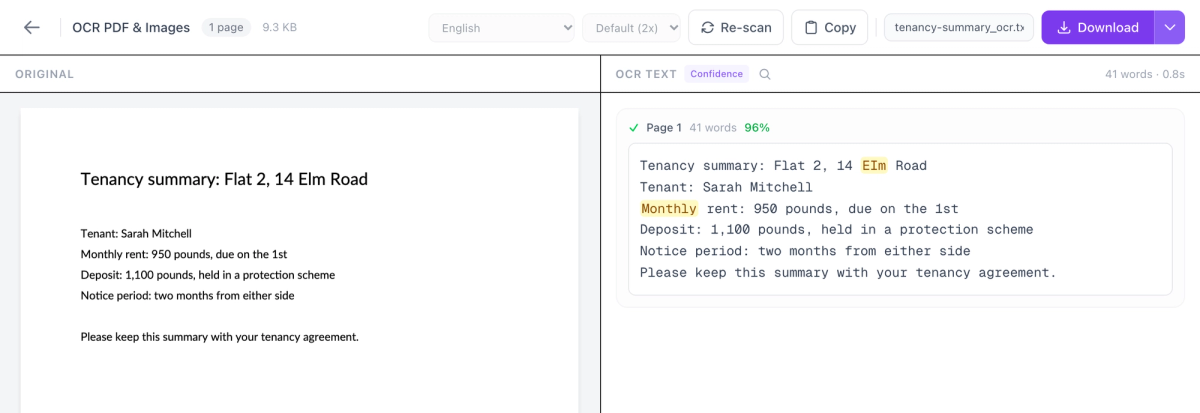
OCR read every line correctly except one slip, "EIm" for "Elm", which it highlighted for checking. Use Copy or Plain Text (.txt) for this kind of file. A searchable PDF would still carry the old, broken text alongside the new.
If you can get the document the PDF was made from, that's even better: copy from there.
Which fix for which problem
- Nothing highlights: OCR PDF, then Copy, Plain Text or Searchable PDF.
- Copy is greyed out, or "Content Copying: Not Allowed": ask the sender for an unrestricted copy. Don't unlock it.
- Pastes as symbols: OCR PDF, then Copy or Plain Text.
- Pastes fine, but in a jumbled order: Extract Text, then tidy the text panel before you copy.