
PDF Prints Cut Off or Too Small? How to Fix the Page Size
A PDF that prints with its edges missing, or shrunk into the middle of the sheet, almost always comes down to the page size, the paper and the scale setting disagreeing. Here is how to tell which one, fix it in the print dialog, and fix the file so it prints right for everyone.
PDF printing cut off at the edges, or a page that comes out shrunk inside a wide white border: both come from the same place. Every PDF page has a fixed size, and when that size, the paper in your printer and the print dialog's scale setting don't agree, either the edges fall off the sheet or the page is scaled down.
Here is how to tell which one it is, fix it in the print dialog, and fix the file itself so it prints correctly for everyone.
Why PDF printing gets cut off
Three things decide how a PDF lands on paper:
- The page size inside the PDF. Each page has a size, such as A4 or US Letter, set by whoever made the file.
- The paper in your printer, and the paper size the print dialog thinks it is using.
- The scale setting: print at actual size, or shrink or stretch each page to fit.
A4 and US Letter don't match
The usual cause when a document has crossed the Atlantic. A4 is 210 × 297 mm. US Letter is 8.5 × 11 inches, or 215.9 × 279.4 mm. So an A4 page is about 6 mm narrower and 18 mm taller than Letter.
Print an A4 PDF on Letter paper at actual size and about 18 mm of the page's height has nowhere to go: a footer, a page number or the last lines go missing. Print a Letter PDF on A4 and about 6 mm of the width doesn't fit, so words at the right edge can be clipped.
Scaling to fit solves it at a small cost. An A4 page fitted onto Letter paper prints at about 94% of its size; a Letter page fitted onto A4 prints at about 97%.
Printers can't print right to the edge
Most printers leave a thin unprinted border around the sheet; its width depends on the printer. Anything right at the edge of a PDF, such as a header bar or a page number in a corner, can be lost at actual size even when the paper size is right. Fitting to the printable area shrinks the page just enough to keep it.
Why a PDF prints too small
- The dialog is fitting the page to the printable area, so it shrinks by a few per cent. That's normal.
- Pages per sheet is set to 2 or more, left over from an earlier print job.
- The PDF's pages are smaller than your paper, such as an A5 leaflet, a ticket or a receipt, and you print at actual size or with Shrink oversized pages, which shrinks big pages but never enlarges small ones.
- The page is full size but the content is small, sitting in the middle with wide white margins around it. This is common with scans and labels. No scale setting helps, because the page already fills the paper: the white margins have to go first (see "Crop first" below).
Fix it in the print dialog
Check these settings first, and watch the print preview: it shows what will come out.
Adobe Acrobat Reader
Choose File > Print. Under Page Sizing & Handling, select Size, then pick one:
- Fit shrinks or enlarges each page to the printable area of the selected paper. Choose it for cut-off edges and for pages smaller than the paper.
- Actual size prints at 100%. Use it only when the page size matches your paper and nothing sits at the very edge.
- Shrink oversized pages shrinks pages that are too big and leaves small ones as they are.
- Custom Scale takes a percentage.
Then check that the paper size in the dialog matches the paper in the tray.
Google Chrome
Open the PDF in Chrome, press Ctrl+P (Cmd+P on a Mac) and open More settings. Set Paper size to the paper in the tray, check that Pages per sheet is 1, and under Scale choose Fit to printable area. Fit to paper uses the whole sheet, edges included, so on a printer with a wide border it can bring the cut-off back. Actual size prints at 100%.
Preview on a Mac
Choose File > Print, then Scale to Fit and Print Entire Image, which fits the whole page without cropping it. Fill Entire Paper crops the page to the shape of the paper, so it can cut edges off. You can also type a percentage next to Scale.
Fix the file: resize the pages to your paper
The print dialog fixes one printout. If the PDF will be printed again, by you or by people you send it to, give its pages the right size. Resize PDF does this in your browser, and the file isn't uploaded.
- Open Resize PDF and choose your PDF.
- Under Size, pick the paper you print on: A4 or US Letter. A3, A5, US Legal, Tabloid and a custom size in mm, inches or points are there too.
- Leave Orient on Auto, so landscape pages stay landscape, and Content on Fit. Fit scales each page's content to the new size and centres it. Center keeps the content at its original size, which brings back the cut-off when the new page is smaller.
- Check the preview on the right, then press Download.
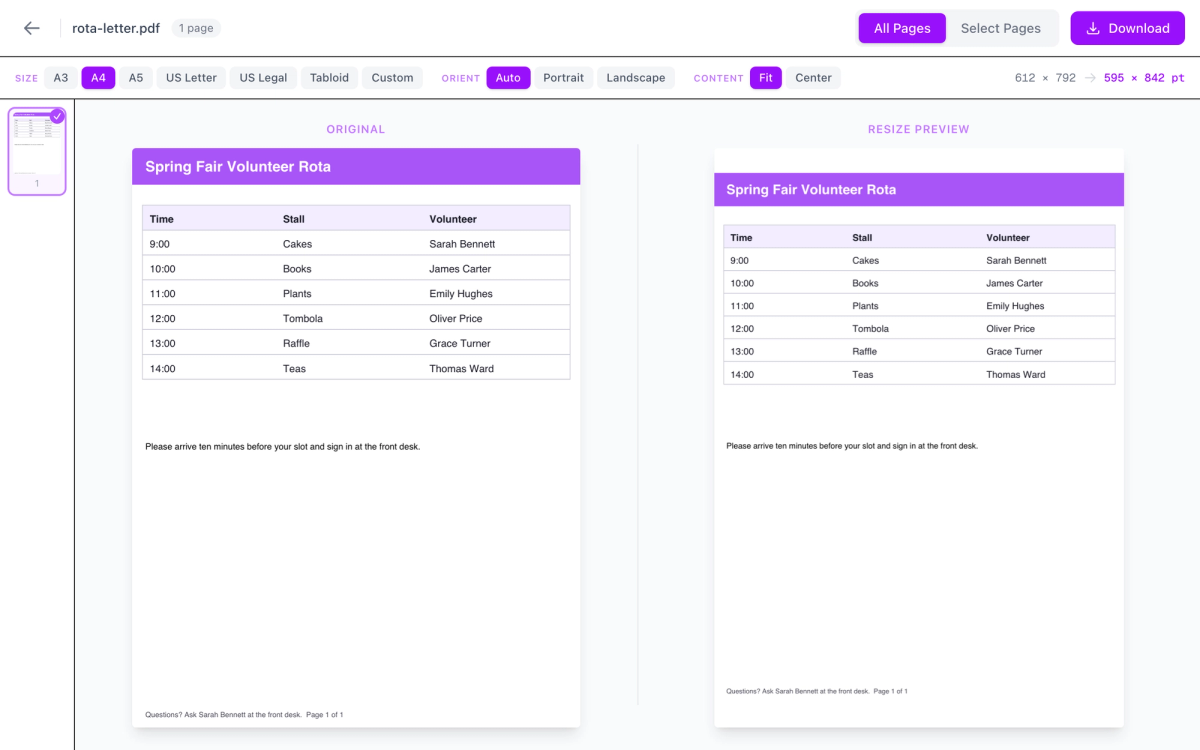
We tried it with a US Letter rota that has a header bar at the top and a footer near the bottom edge: the A4 version kept everything, slightly smaller, with a white band above and below, and its text could still be selected and searched. You can also resize only the pages you select, handy when one odd-sized page is what prints wrong.
Fit uses the full sheet; it doesn't add a white border. If your content runs right up to the edge, still print with Fit (Acrobat) or Fit to printable area (Chrome), so the printer's border doesn't clip it.
Too small because of wide white margins: crop first
When the content sits in the middle of a big white page, cut the margins away with Crop PDF, then let the page be enlarged.
- Open Crop PDF and choose the PDF.
- Drag the handles to the edges of the content, or type the margins in points for the top, right, bottom and left. Tick Apply to all pages if every page has the same margins.
- Press Download Cropped PDF.
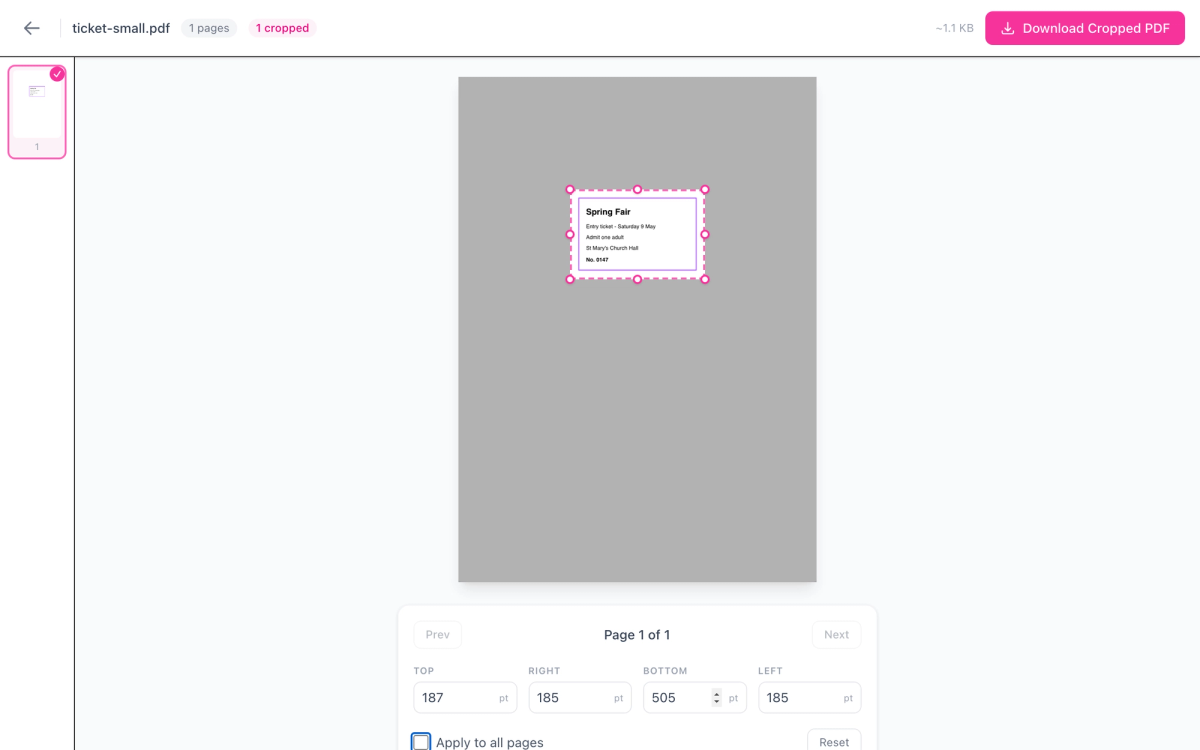
The cropped page is now the size of its content, so print it with Fit and it is enlarged to fill the paper. Or open it in Resize PDF with A4 and Fit to turn it into a normal page: our ticket, 225 × 150 points after cropping, came out as a landscape A4 page about 3.7 times larger.
Cropping hides the edges rather than deleting them, so what's outside the crop box is still in the file. To remove something private for good, use Redact PDF instead.