How to Tell if an Online PDF Tool Uploads Your File: A 1-Minute Test
Privacy pages make promises; your browser shows what actually happens. Two checks, about a minute each, tell you whether a PDF tool sends your file to a server: the Network tab on a computer, and a practice run followed by an offline run on any device, phones included.
A privacy page can say anything. Your browser shows what actually happens. Two quick checks, about a minute each, tell you whether an online PDF tool sends your file to a server:
- Watch the Network tab while the tool works. An upload is a request that sends data out, about the size of your file.
- Do a practice run, cut the connection, and run it again. If you still get the result, the file can't have gone anywhere.
Neither test asks you to trust anyone, including us. Below are the exact steps, what we saw when we ran them on our own tools, and what the tests can't tell you.
Why "we delete your files" isn't the same as "never uploaded"
There are two ways a PDF tool can work. Some send your file to their server, do the job there and send the result back. Their privacy page then tells you how long they keep it. Others do the job inside your browser tab, so the file stays on your device. Both are legitimate, and some jobs really do need a server. What matters is knowing which kind you're using before you add a payslip, a contract or a medical letter.
Always test with a harmless file first, never the confidential one.
Test 1: watch the Network tab (computer)
This works in Chrome and Microsoft Edge, which share the same developer tools.
- Open the tool's page, for example Merge PDF.
- Press F12 (on a Mac, Cmd + Option + I) and click the Network tab.
- Click the Clear button (a circle with a line through it), so the list starts empty.
- Use the tool with a test file: add it, run it and download the result.
- Type -method:GET into the Filter box. GET requests are your browser fetching things: the tool's code, fonts and pictures. The filter hides them and leaves only requests that send something.
- Read what's left. If the list is empty, nothing was sent. If something is there, click it and open Payload: an upload shows a form field holding a file, marked "(binary)".
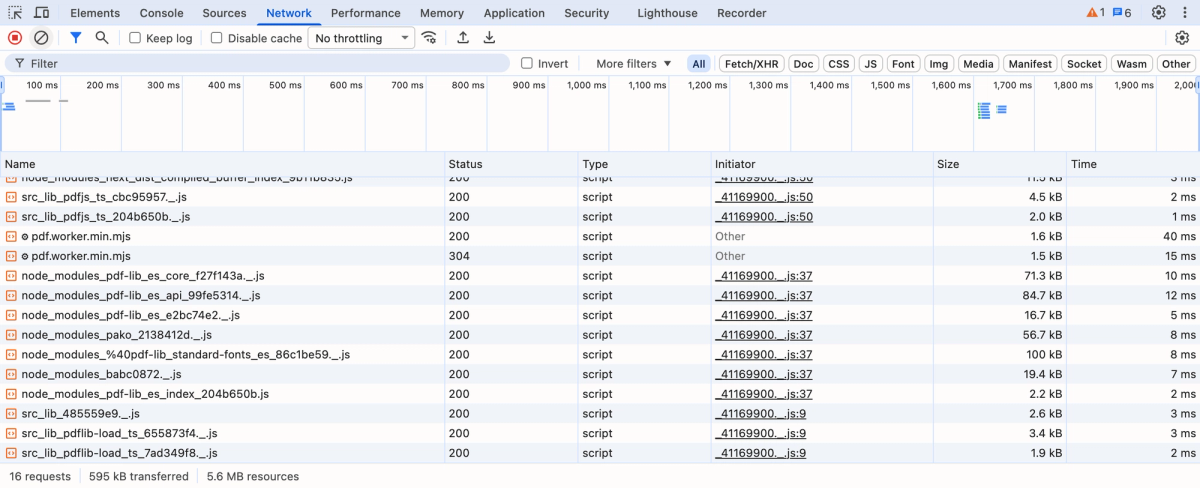
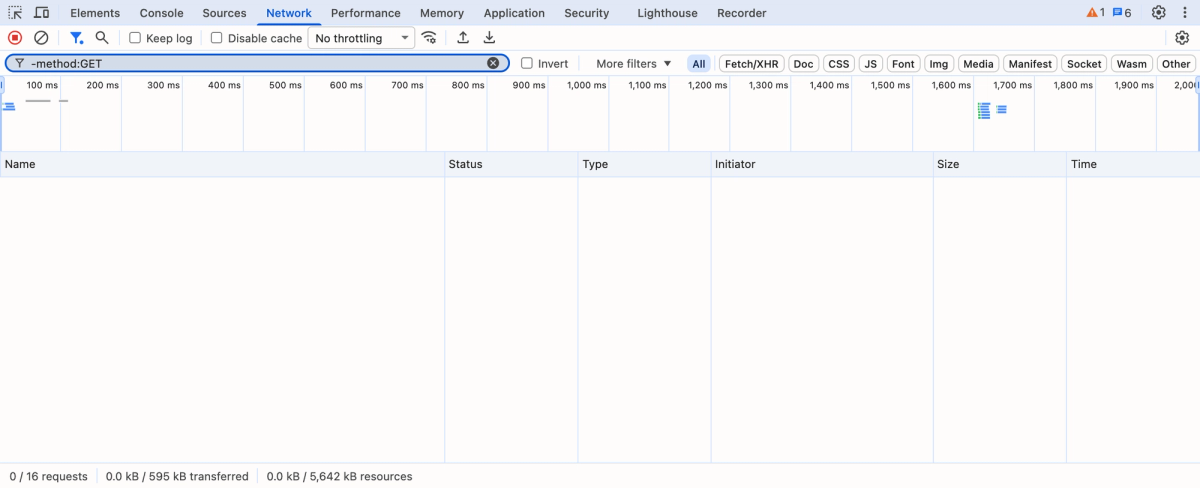
In Firefox, open the Network tab with Ctrl + Shift + E (Mac: Cmd + Option + E); its filter accepts the same -method:GET. Safari has a Network tab too once you turn on Safari > Settings > Advanced > Show features for web developers, but if you'd rather not dig in, Test 2 works in any browser.
Small requests that aren't your file
A list with something in it doesn't always mean an upload. Sites send other things, and the Payload tab shows what. On our own site you may see:
- requests to Google Analytics, but only if you clicked Accept on the cookie banner;
- a small request named count when you leave the page or switch tabs: an anonymous tally such as "merge used once", with no cookie;
- your email address, if you type it into the optional box that can appear before a download.
None of these carries the file. A real upload is about the size of your file and shows it in the Payload tab.
Test 2: practice run, then offline (any device, phones too)
- Open the tool and do one full run with a test file while you're online.
- Cut the connection: switch off Wi-Fi, turn on aeroplane mode, or in Chrome's Network tab change No throttling to Offline.
- Without reloading the page, run the tool again with your real file. If the result downloads, the work happened on your device.
- Close the tab before you reconnect, so the page can't quietly send the file once you're back online. For a page you have real doubts about, run Test 1 as well.
Don't skip step 1. Many tools, ours included, download the code that does the work only when you first use it. We cut the connection straight after opening Merge PDF and it couldn't load that code, so the merge never ran. After one practice run, both Merge and Compress PDF finished with the connection off. So a tool that fails offline without a practice run isn't proof of an upload. One that still fails after a practice run probably needs a server, and Test 1 will show you what it sends.
On a phone, pick a file that is saved on the phone itself: a cloud file may need a connection just to open.
What the tests show on OneClickPDF
Most of our tools, including merge, split, compress, sign, redact, OCR and edit, pass both tests: they open your file in your browser and don't send it to us or anyone else. A few work differently by design, and each says so on its page:
- Word, Excel and PowerPoint to PDF upload the file to our converter, which deletes it after converting.
- PDF to Word sends the file to Adobe's conversion service.
- The AI tools and Translate PDF read the PDF in your browser and send only its extracted text to Google Gemini.
- Webpage to PDF fetches the page you name through our server.
- Signing or scanning from your phone passes the image through our server, where it's kept for up to 10 minutes.
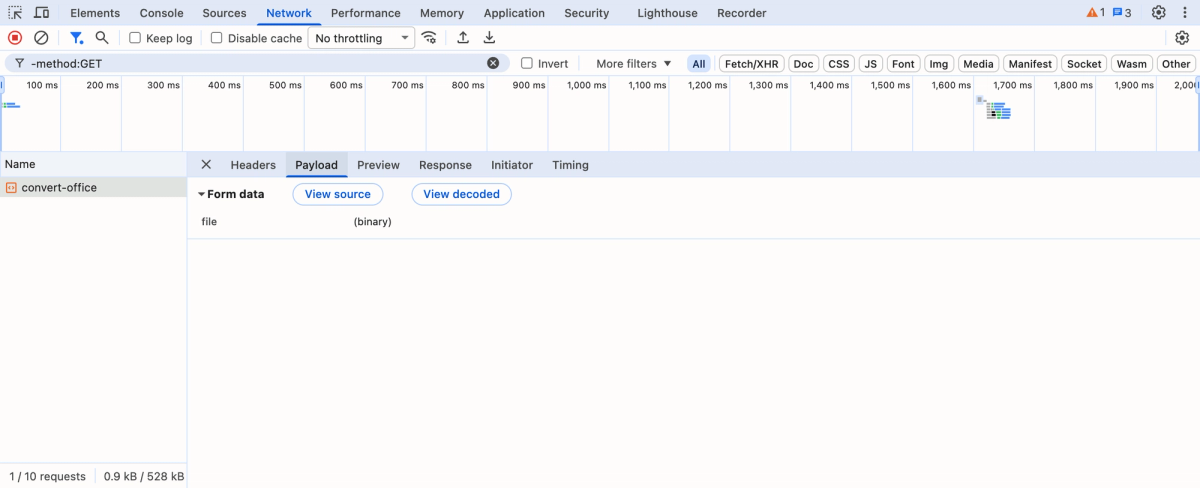
We ran both tests on Merge and Compress with test files. Neither made a single request apart from fetching its own code, and after a practice run both finished offline in Chrome's engine (Merge in Safari's engine too). Run them yourself on Merge PDF and you'll see the same.
What the tests can't tell you
- What happens after an upload. The tests show whether a file leaves your device, not how long a server keeps it or who can see it. For that, read the service's own privacy policy.
- Next week's version. A site can change its code. If it matters, test again.
- Other software. Browser extensions and the device itself are outside what one web page shows.
If a tool fails both tests and the job is confidential, look for one that passes, or use a desktop app you trust.
Frequently Asked Questions
If a tool runs in my browser, does that mean nothing is sent at all?
Can I check on a phone?
Is a tool that uploads my file unsafe?
Why does a tool that says it runs in the browser stop working when I go offline?
Which OneClickPDF tools send something to a server?
Try these tools next
Merge PDF
Combine multiple PDF files into a single document in seconds.
Compress PDF
Shrink large PDFs for email, web upload, or cloud storage. Our compression preserves image clarity and text sharpness — you choose the quality level.
Word to PDF
Convert .doc and .docx files to PDF with selectable text, embedded fonts, and accurate formatting. Free, unlimited — or upgrade to Adobe quality for $0.99 for tagged accessibility-grade PDFs.