Save a Full-Page Screenshot as PDF in Chrome: ScreenSnap 1.3.0
How to capture a whole webpage in Chrome and save it as a PDF with ScreenSnap, a free extension: page sizes, hiding personal details, when a screenshot PDF is the wrong tool, and what changed in version 1.3.0.
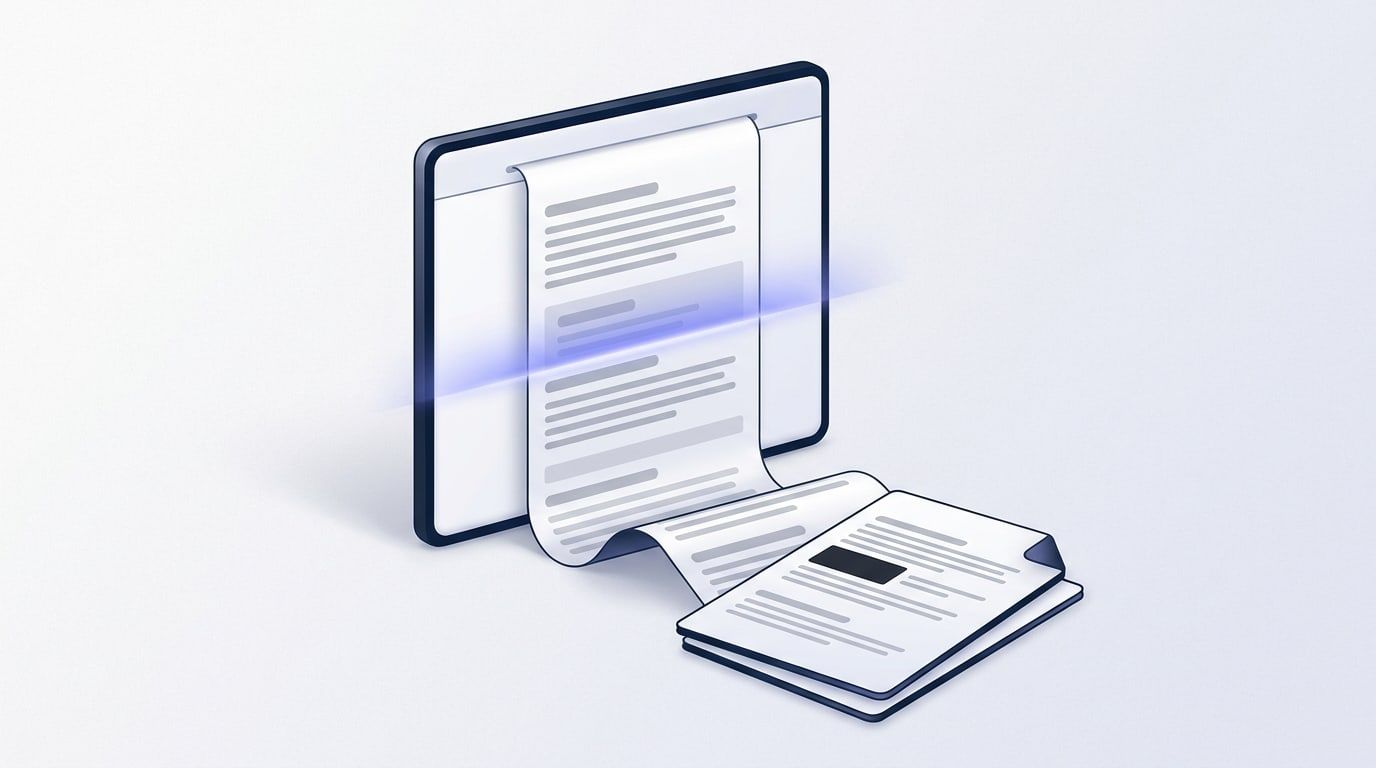
You want a copy of a whole webpage: an order confirmation, a booking, a long set of instructions. Printing it often breaks the layout, and a normal screenshot only catches what fits on your screen. A full-page screenshot saved as a PDF keeps the page exactly as you saw it, top to bottom, in a file you can file, email or print.
ScreenSnap is our free Chrome extension for this. It captures the whole page as one picture and saves it as a PDF, PNG or JPG. There's no account and there are no ads. Your screenshot is edited in your browser and is not uploaded to our server. If you need the page's text to be selectable, our Webpage to PDF tool is the other route; we compare the two below.
How to save a full-page screenshot as a PDF
- Add ScreenSnap from the Chrome Web Store and pin it to your toolbar.
- Open the page you want to keep. You don't need to scroll first.
- Click the ScreenSnap icon and choose PDF. Pick a page size (A4, Letter or Fit to image), portrait or landscape, and a margin from none to 20 mm.
- Click Full Page, or press Alt+Shift+F (Option+Shift+F on a Mac).
- The editor opens in a new tab. Hide anything private, add an arrow or a note if you like, then click Save.
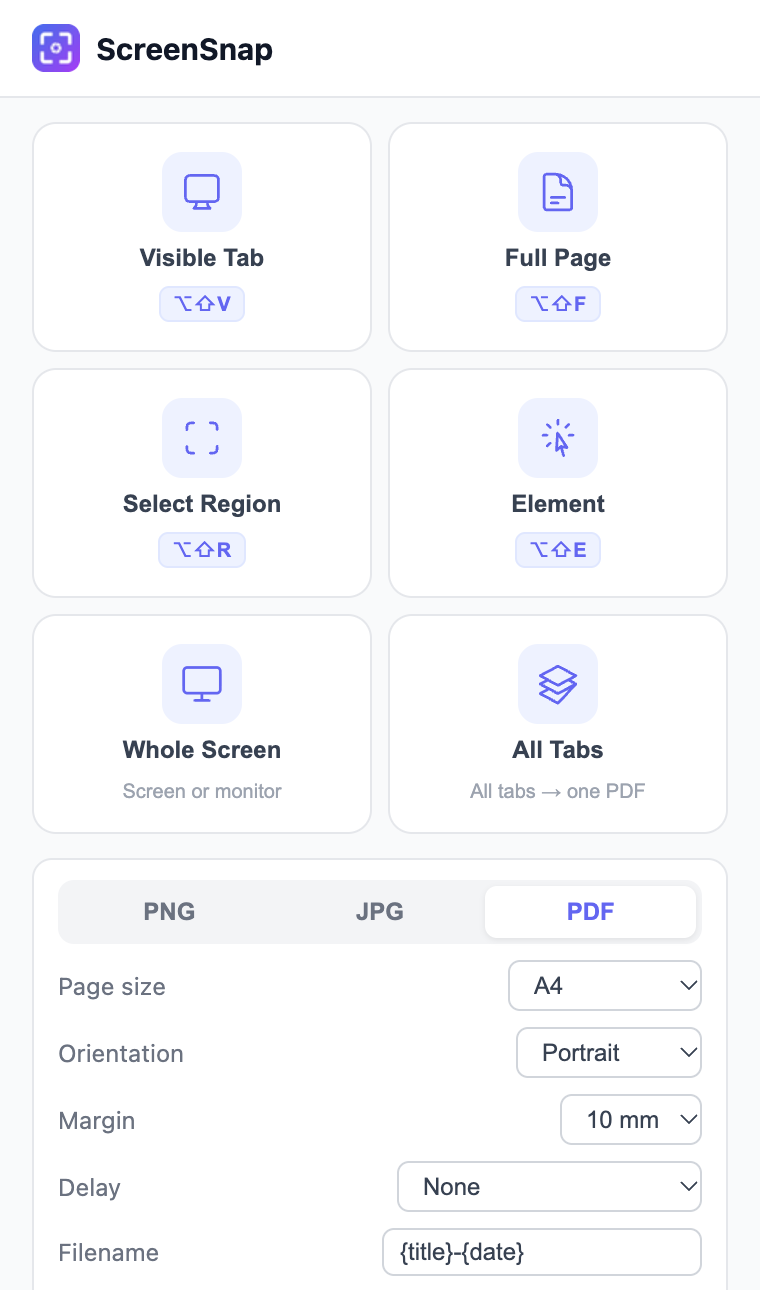
The file name comes from a pattern you can change. The default is the page title, and you can add the site's name, the date, the time or a running number.
How a long page fits on paper
With A4 or Letter, the page is drawn at its real size and only shrunk if it is wider than the paper. A long page carries on over as many sheets as it needs. A page that is only a little longer than one sheet is shrunk slightly to fit on one. With Fit to image you get a single tall page the exact shape of the screenshot. That's good for reading on screen, but not for printing.
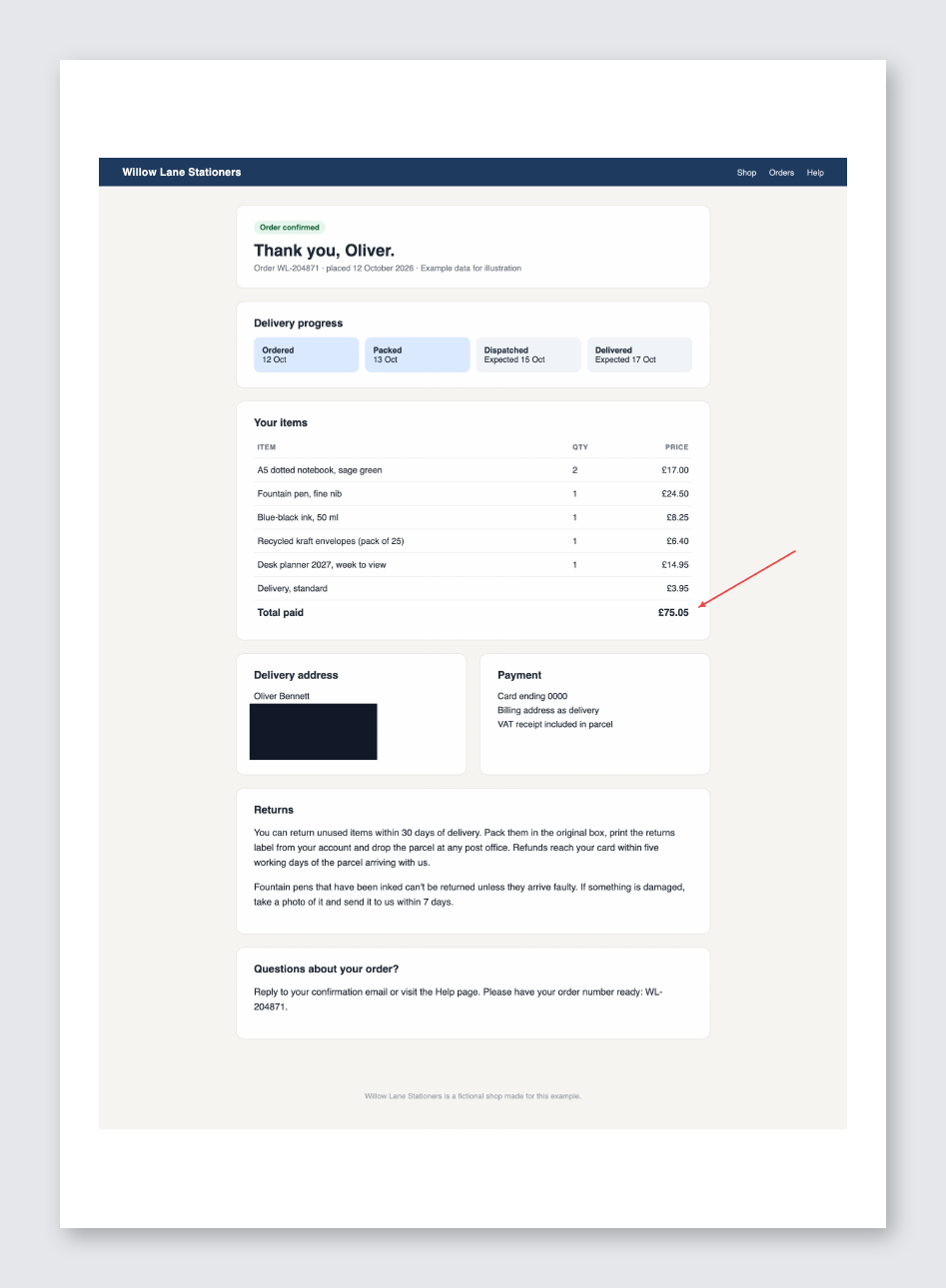
Sticky headers and floating chat buttons appear once at the top, not repeated down the page. On a very long page ScreenSnap may save the page at a smaller size to stay within what the browser can handle, and it tells you when it does.
Hide personal details before you save
Order pages, bank pages and dashboards are full of things you may not want in a shared file. The editor has two tools for this. Redact draws a solid box over an area. Blur smudges it. Both become part of the picture when you save, so the PDF has no hidden copy of what you covered. For words and numbers, use Redact: blurred text can sometimes still be read.
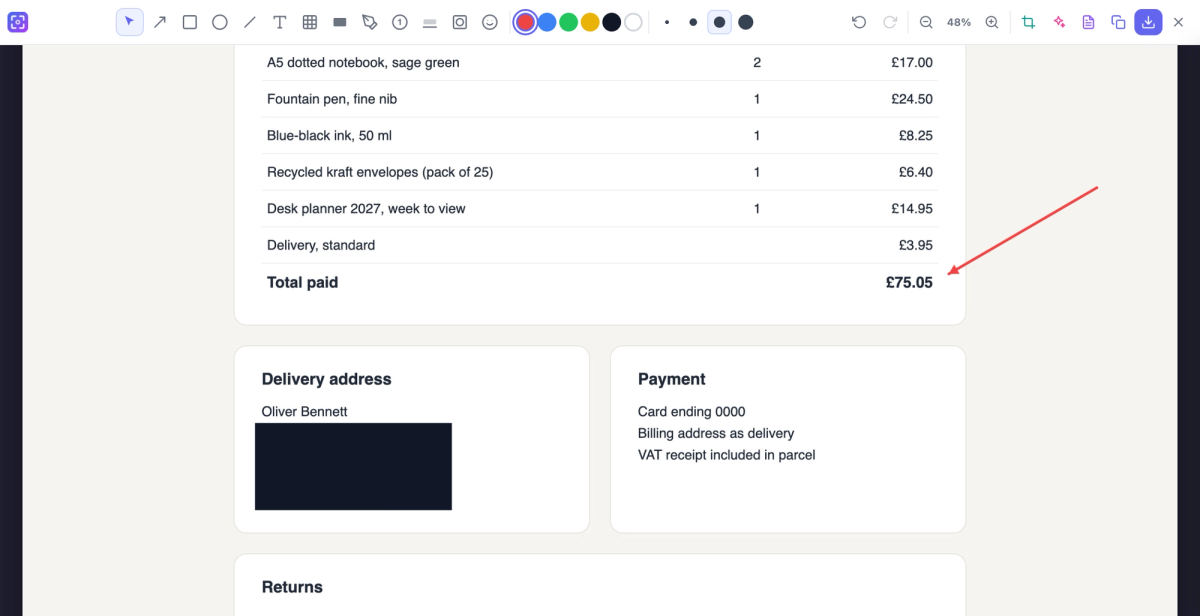
You can also add text, arrows, shapes, numbered badges, highlights, a spotlight or emoji, and crop to a shape such as 16:9 or 1:1. Undo goes back up to 50 steps.
When a screenshot PDF is the wrong tool
A screenshot PDF is a picture, so you can't select or search its words. If that matters, you have three options:
- Make it searchable: open the PDF in OCR PDF. It reads the words in your browser and adds an invisible text layer, so you can search and copy.
- Convert the page itself: for a public page, Webpage to PDF builds a PDF with selectable text and working links. It fetches the page through our server, so it sees the public version, not what you see when signed in. That's why ScreenSnap is the better choice for order pages and account screens.
- Combine screenshots you already have: Image to PDF turns PNG and JPG files into one PDF, in your browser.
Other ways to capture
Full Page is one of six modes:
- Visible Tab: just what's on screen.
- Select Region: drag a box around part of the page.
- Element: click one part of the page, such as a table or a chart.
- Whole Screen: your screen, another window or a tab.
- All Tabs: every tab in the current window, as a ZIP of images or one combined PDF.
- Delay: wait 3, 5 or 10 seconds before capturing, or schedule a capture 1, 2 or 5 minutes ahead.
There's more on each mode in our full-page screenshot guide and on the ScreenSnap page.
What's new in ScreenSnap 1.3.0
Version 1.3.0 is a test-and-fix release, not a feature release. We wrote 846 automated tests: 308 drive the real extension (the popup, every capture mode, scheduled captures, shortcuts and the hand-off to the editor) and 538 drive the editor (its tools, crop, backdrops, OCR, saving, undo, keys and layout). They turned up more than 60 bugs, and each one was fixed and tested again. Changes you may notice:
- A long Full Page capture saved as PDF now carries on over several sheets instead of being squeezed onto one.
- Full Page leaves you where you were on the page, and works properly on zoomed-in pages.
- Choosing PDF and then editing now saves a real PDF.
- All Tabs saves JPG when you choose JPG, and handles large batches as one PDF.
- Tall elements, and elements inside embedded frames, are captured whole.
- File names keep dots in site names and accented letters.
- Text you've placed can be opened and edited again, and every mark can be resized.
- In the editor, all 16 OCR languages now work, and their files load from our own site.
- The editor's toolbar fits on smaller laptop screens.
There are privacy changes too. The extension no longer keeps a copy of your last capture in its storage. Error reports now send a short fixed code, never the browser's error text, which could quote a page address. One permission (unlimited storage) was removed and none were added. The download is now about 208 KB, down from 5.3 MB.
Chrome installs extension updates on its own. To see which version you have, open chrome://extensions and look under ScreenSnap.
Good to know
- The editor and OCR are pages of oneclickpdf.net, so they need a connection. Your screenshot is passed to the editor inside your browser and is not uploaded.
- ScreenSnap sends anonymous, opt-out usage counts to Google Analytics. Switch them off with Share anonymous usage data in the popup.
- During Full Page, Chrome shows a bar saying ScreenSnap is debugging the tab. During Whole Screen, it shows its screen-sharing bar. Neither can be hidden.
- On high-density screens, PNG files are made from a high-quality JPEG capture, so they are not lossless.
- ScreenSnap takes still pictures only. It doesn't record video or GIFs, and it has no cloud sharing.
Frequently Asked Questions
Does ScreenSnap upload my screenshots?
Can I select or search the text in the PDF?
Why does Chrome say ScreenSnap started debugging this browser?
Is the PNG lossless on a Retina or high-density screen?
Do I need to be online?
Try these tools next
Webpage to PDF
Capture any web URL as a PDF document.
OCR PDF
Turn scanned PDFs and image files into searchable, editable text using Optical Character Recognition (OCR) for a live preview. Supports 16 languages.
Image to PDF
Combine JPG, PNG and WEBP images into one PDF, one page per image. Drag them into order and fit each page to its picture or use A4, Letter or Legal.